
This article demonstrates how to change your schedule in MyFlexLearning as a Student.
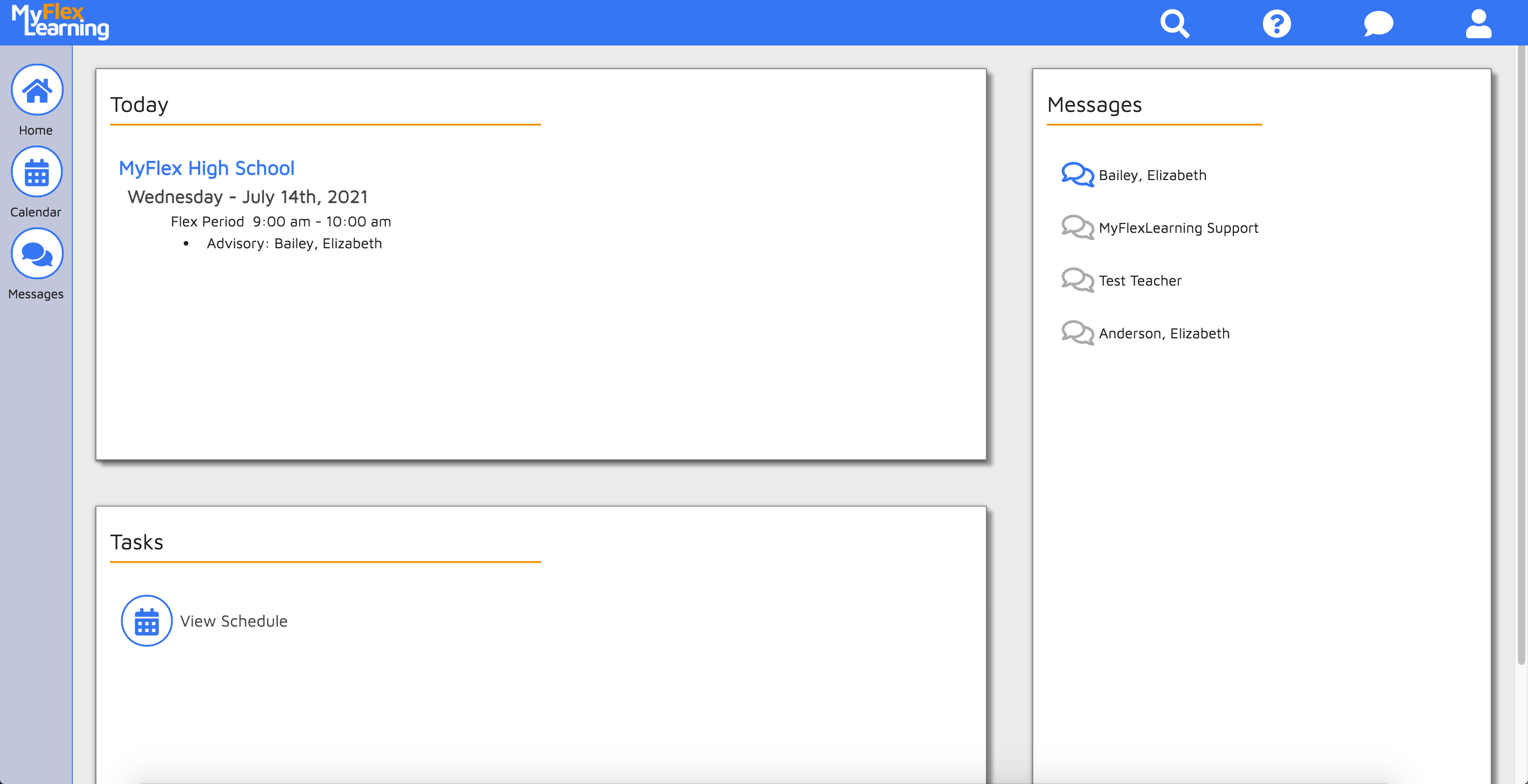
1. When you login to MyFlexLearning, click the "View Schedule" under Tasks widget on homepage OR the Calendar icon on the left panel.
2. On the Calendar, use the Day/Week/Month buttons (upper-left) and arrows (upper-right) to navigate the calendar.
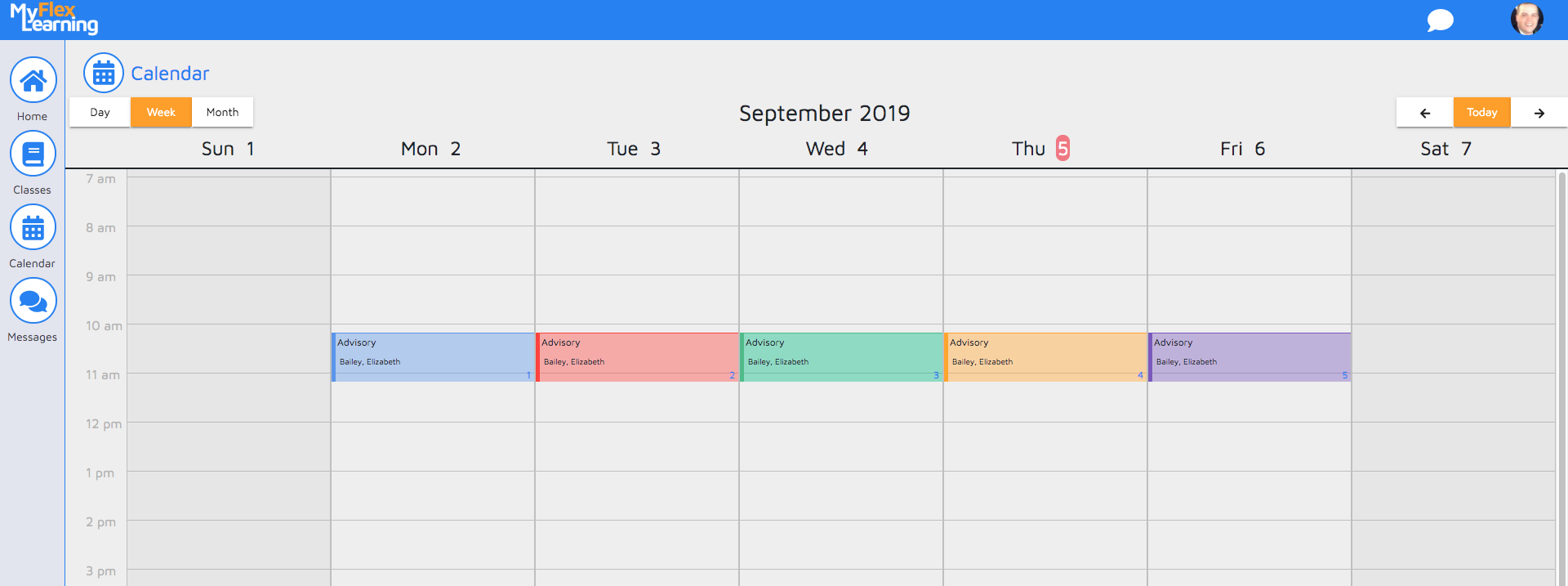
3. Once you have found the day and period to change, click the block to see the details of scheduled class. You will see a dialog box for the class or "Nothing Scheduled" if you don't have anything scheduled for that period yet.
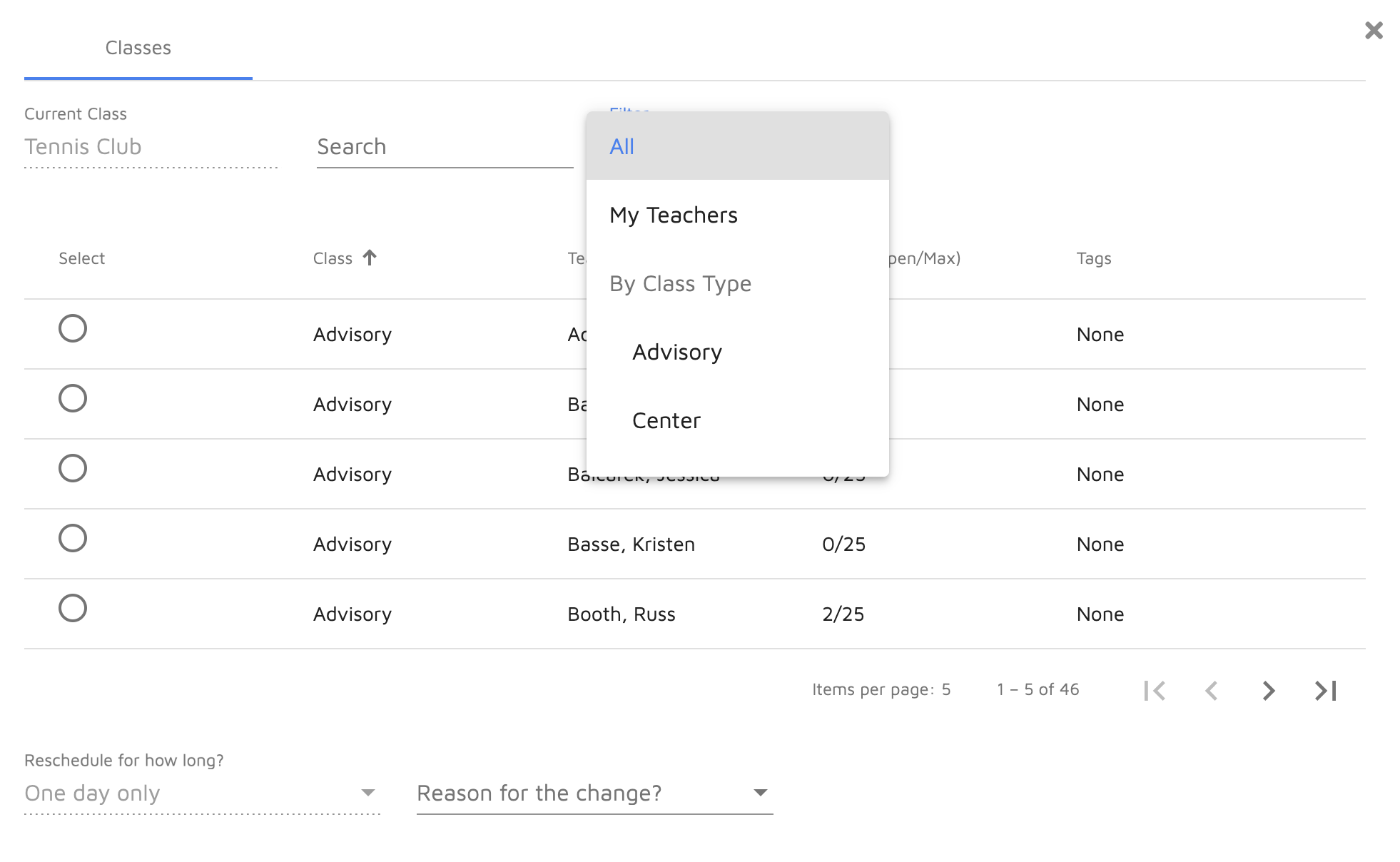
4. Click "Change Class." You will see the options available during this period. Use the Search, Filter or Navigation arrows to find the class you would like. You can filter on My Teachers to see your academic teachers.
5. Click the radio button for the class you would like.
6. Add a Reason for the change. When selecting "Other" you will be able to add a custom note. The reason and note will be visible to you and the teachers in your school.
7. Click Change Schedule.
Here is a video of this functionality:
Comments
0 comments
Article is closed for comments.