
This article demonstrates how to handle login issues when login window pops up and then closes automatically. This is a browser issue and can be quickly corrected.
1. Clear your browser cache. You will be logged out of any active sessions.
- In Chrome go to the upper left-hand side and select the 3 dots.
- Select "More tools" > "Clear browsing data" > Advanced > Time range - All time
- Make sure Cookies and other site data and Cached images and files are selected.
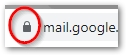
2. Click on the "lock" in the address bar.
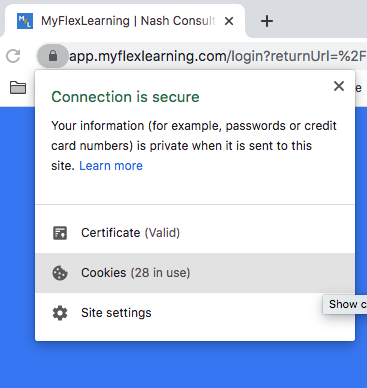
3. When the dialog box appears, click "Cookies."
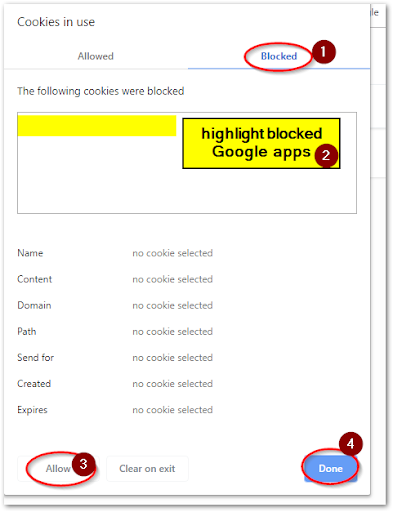
4. MyFlexLearning may be listed in the screen of "allowed" apps, but Google apps may be blocked.
To correct:
- Click the "Blocked" tab.
- Highlight the apps listed
- Click Allow
- Click Done
Comments
0 comments
Article is closed for comments.