
This article demonstrates how to schedule a student in MyFlexLearning as a Teacher.
There are two ways to Schedule a Student:
A. Add student to a Flex Block class (Pull)
B. Push Students from your Advisory to another class (Push)
A. Add student by Name or ID to a Flex Block class (Pull)
1. From the homepage, click the Take Attendance under the Tasks widget.
2. Click “Add Students” button.
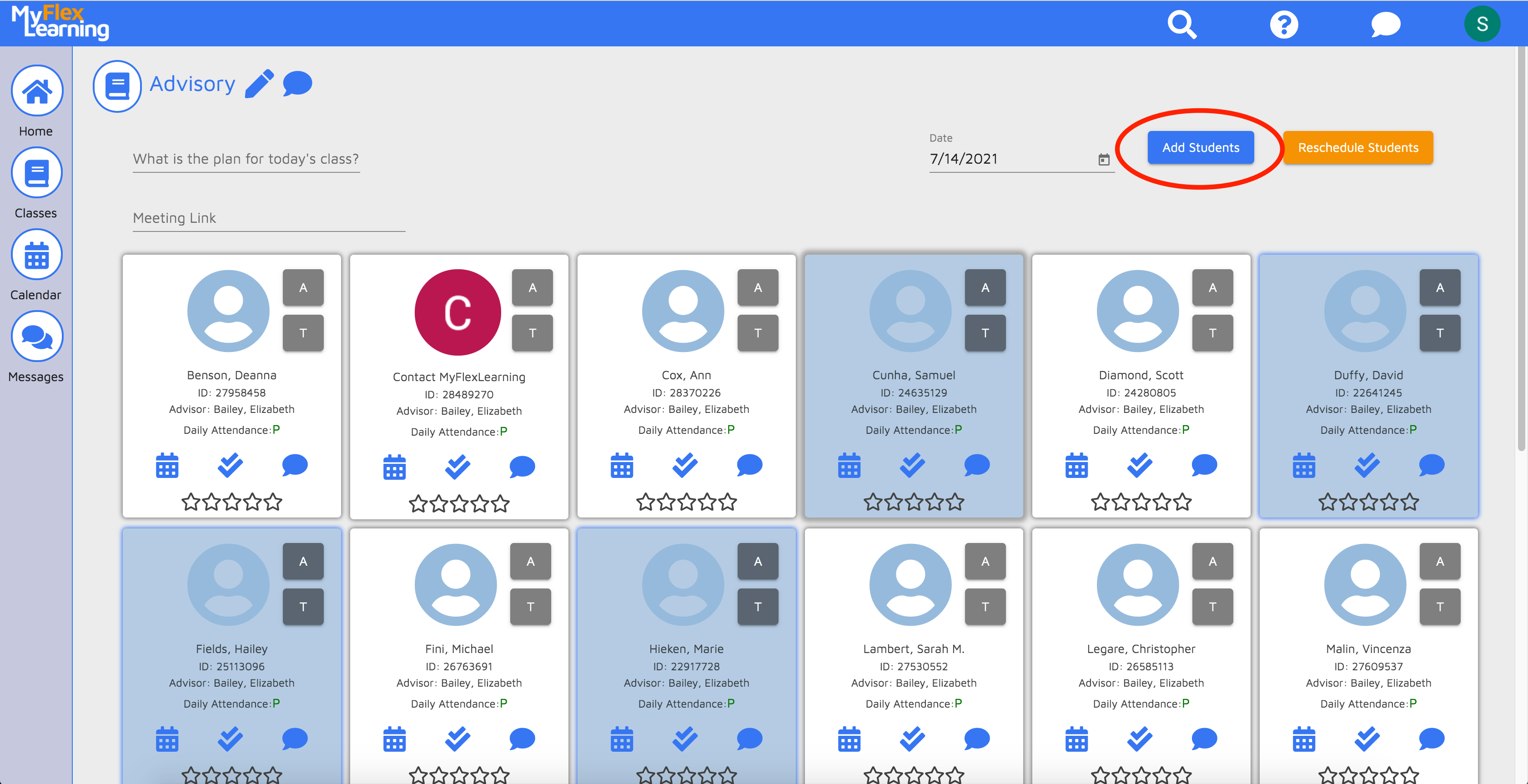
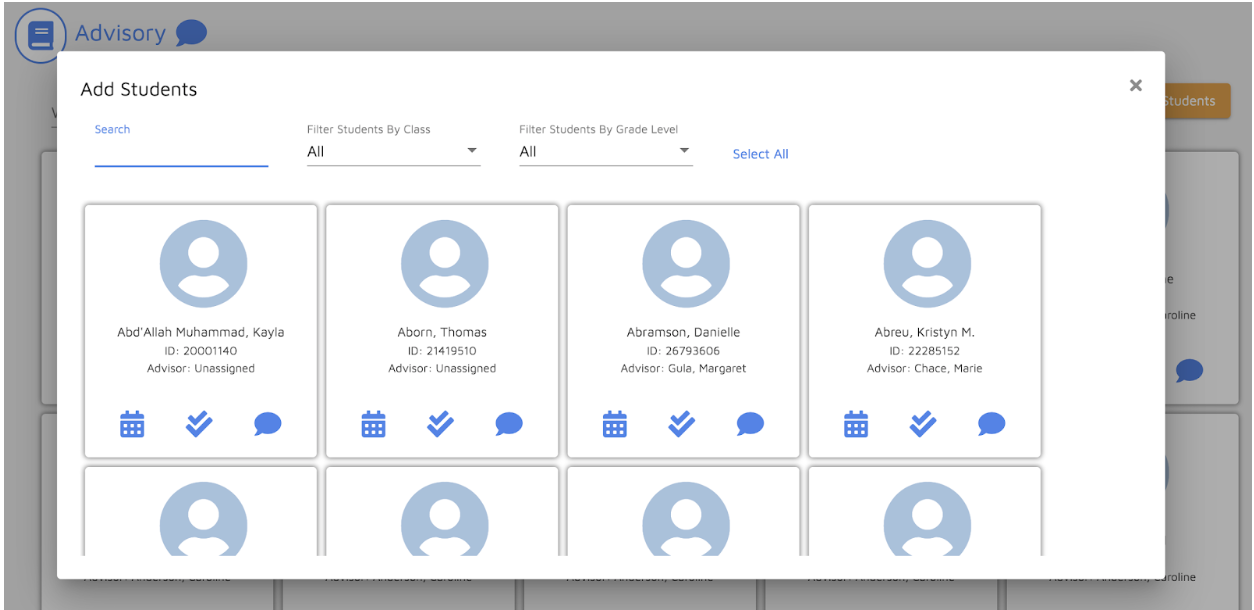
3. Find the student by one of these options:
- Type Name or ID into the Search field
- Filter the student by SIS Class and Grade (optional)
- Filter the student by Grade Level
4. Click the student card, then the Add button.
5. If adding these students exceeds the enrollment maximum for the course for any of the days selected, the Teacher will receive this message: “Adding the selected students will push the enrollment over the class size. Do you want to continue? “
-
-
- If Yes, the Teacher will progress through the steps.
- If No, the schedule change window will close and no changes will be made.
-
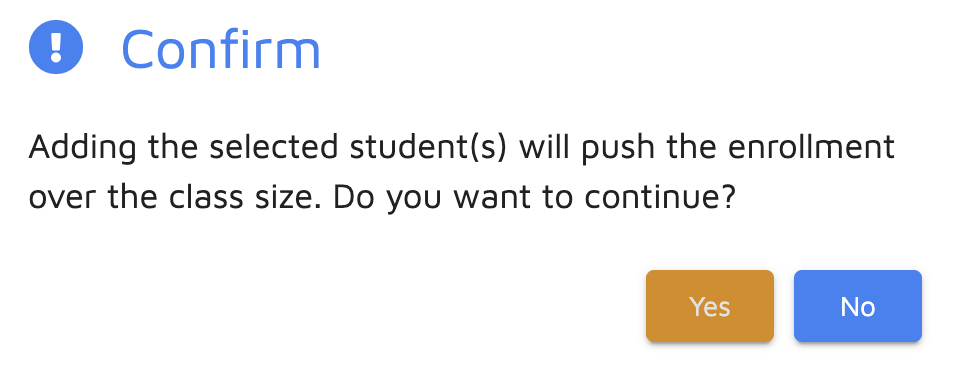
Note that Teachers can only override the enrollment max for classes for which they are the primary or secondary teacher.
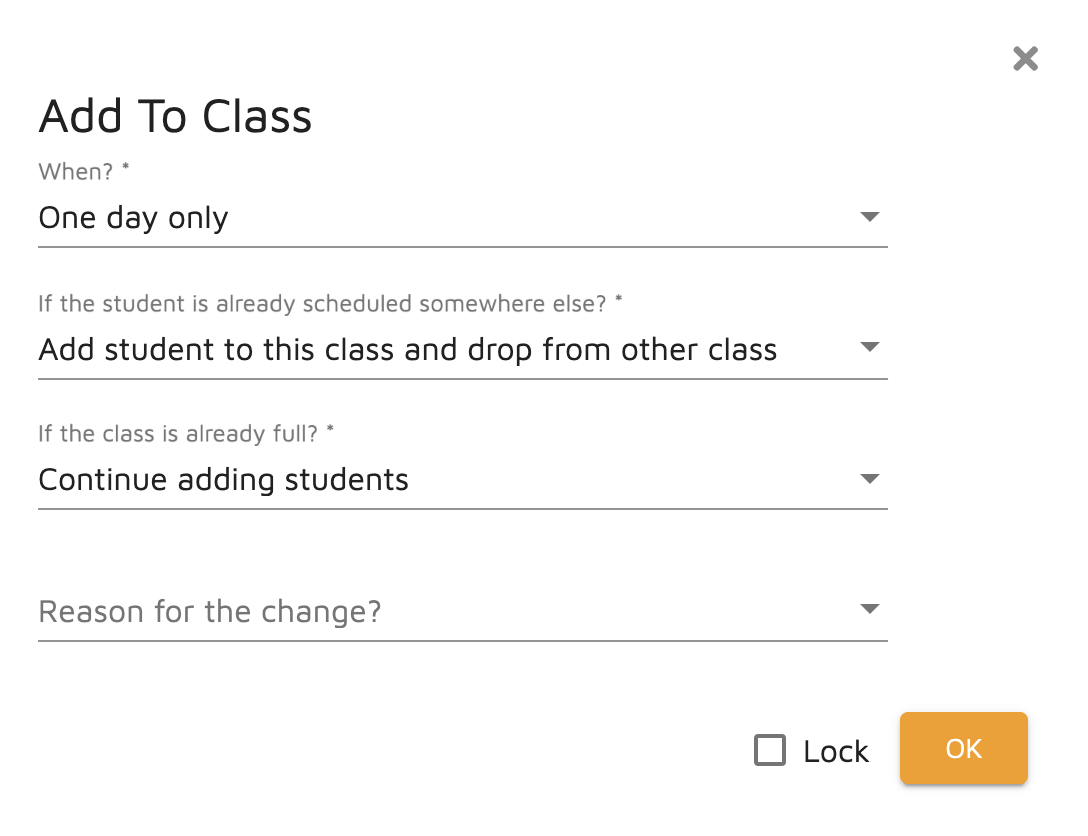
6. The Add To Class window appears.
-
-
- When? Enter the duration the students will be added to the class.
- If the student is already scheduled somewhere else? Select option for how to handle scheduling change.
- If the class is already full? - Select whether to override enrollment max.
- Reason for the change Indicate reason for schedule change.
-
6. To prevent another teacher from changing this, check the “Lock” checkbox (optional).
7. Click “OK.”
B. Push Students from your Advisory to another class (Push)
1. From the homepage, click the Take Attendance under the Tasks widget.
2. Select students, then click the “Reschedule Students” button.
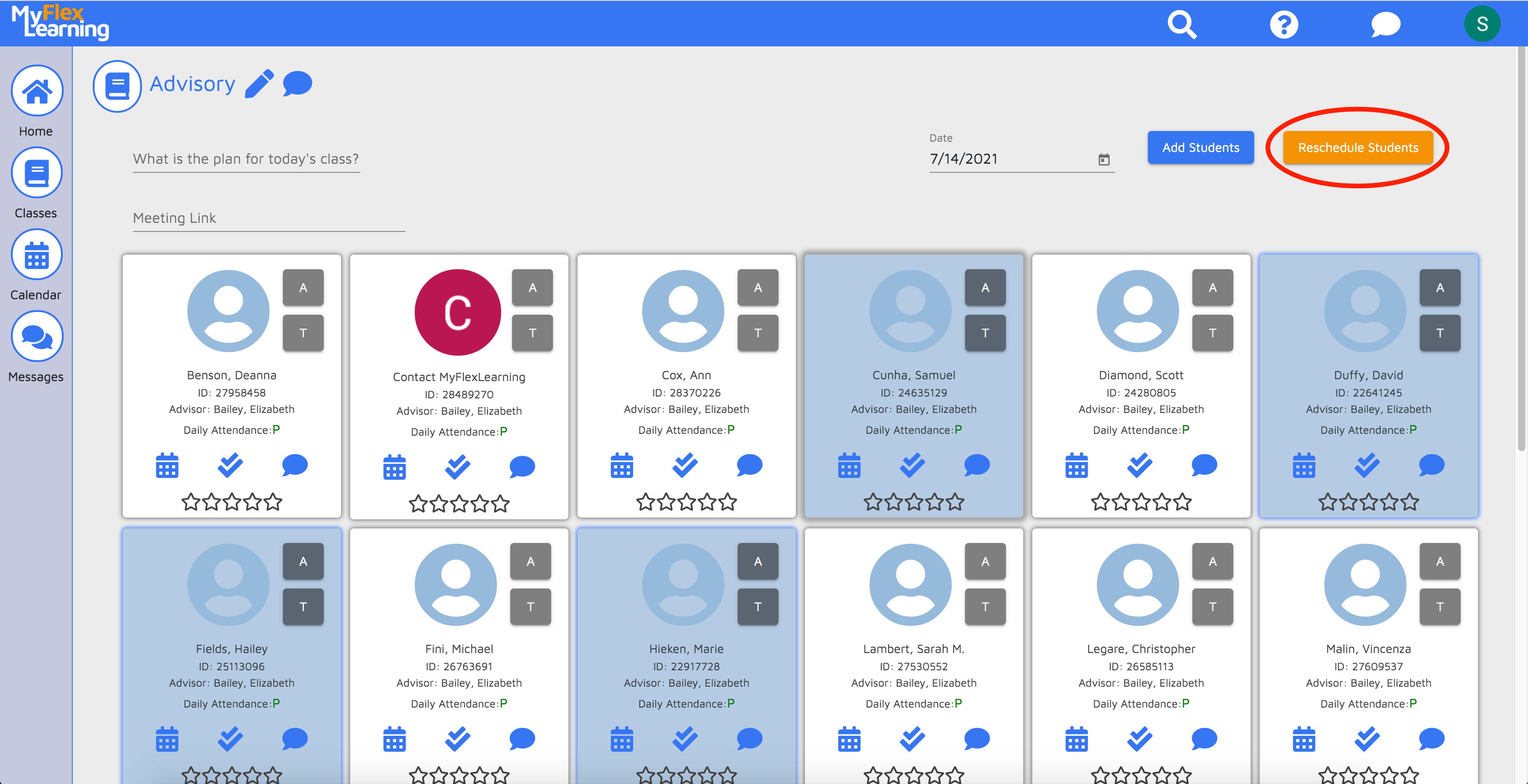
3. Select the class the students should be pushed into.
4. Enter the duration the students will be added to the class.
5. Add a reason for the schedule change. Select "Other" to add free text. Reasons will be visible to other teachers.
5. To prevent another teacher from changing this, check the “Lock” checkbox (optional).
6. Click the “Change Schedule” button to complete the schedule change.
Here are videos of this functionality:
Add student by Name or ID to a Flex Block class (Pull):
Push Students from your Advisory to another class (Push)
Comments
0 comments
Article is closed for comments.