
This article demonstrates how to update a cycle day in MyFlexLearning. This can be used when there is a snow day, unplanned vacation day or any situation where the cycle day needs to be adjusted.
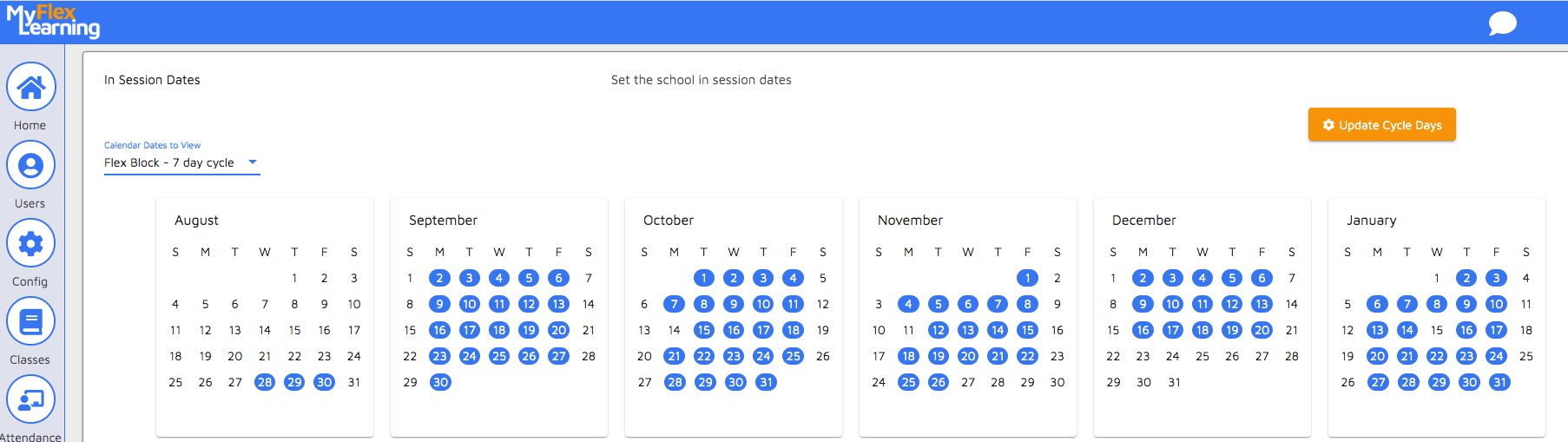
1. Click the Configuration icon on the left panel.
2. Click In Session Dates.
3. If you want to make a day not in session, click on that date.
4. Click the Calendar Dates to View drop-down to select the flex period to change.
5. Click Update Cycle Days.
6. Enter the Update Cycle Day details:
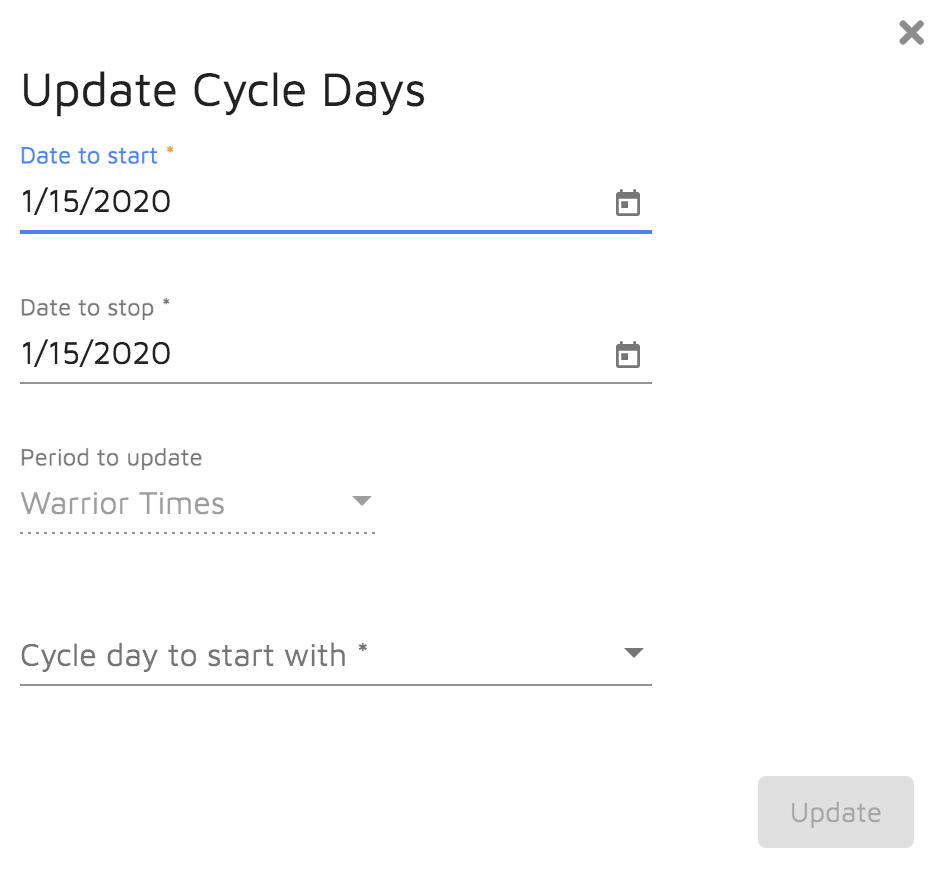
- Date to Start: This is the first day of the changed cycle. For example, if Monday is supposed to be day 1 and it is a snow day and you want to make Tuesday day 1, put in Tuesday’s date as the Date to Start.
- Date to Stop: This is the last day that will be changed as part of this operation. If you want to make this change only for this week, Friday’s date would be the Date to Stop. If you want this to continue throughout the rest of the school year, the last day of school would be the Date to Stop.
- Period to Update: This is pre-populated with the period you will be changing.
- Cycle day to start with: This is the day in your cycle that you want to occur on the date you enter on the Date to Start field.
7. Select Update.
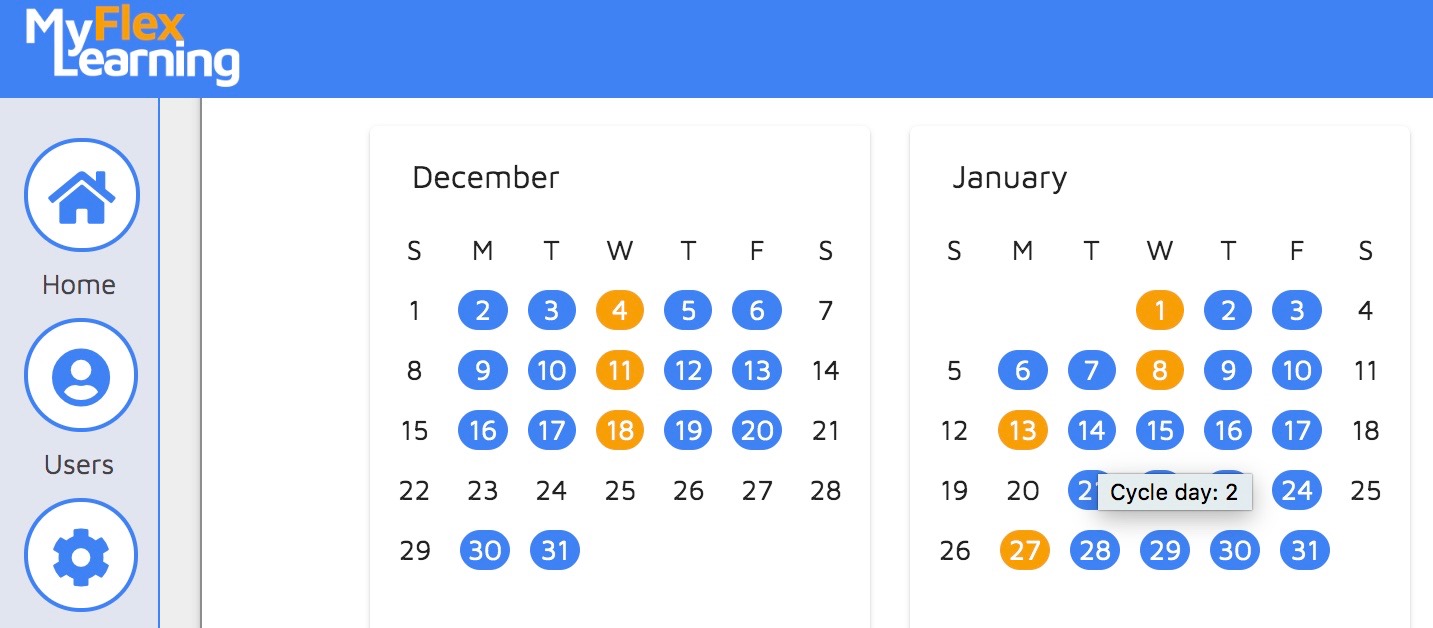
8. Hover over the cycle days to confirm they have changed.
Here is a video of this functionality:
Comments
0 comments
Article is closed for comments.