
Role Assignment Note: If a user needs both administrator and teacher responsibilities, they must be assigned two separate roles. Users with only an Administrator role cannot be selected as a Teacher and will not appear in the dropdown when assigning a teacher or co-teacher to a class. Additionally, the SIS–MFL sync updates each account with one role only, so dual-role access must be configured directly within MFL.
1. To add an alternate role to a user Navigate to MFL Home page > Users.
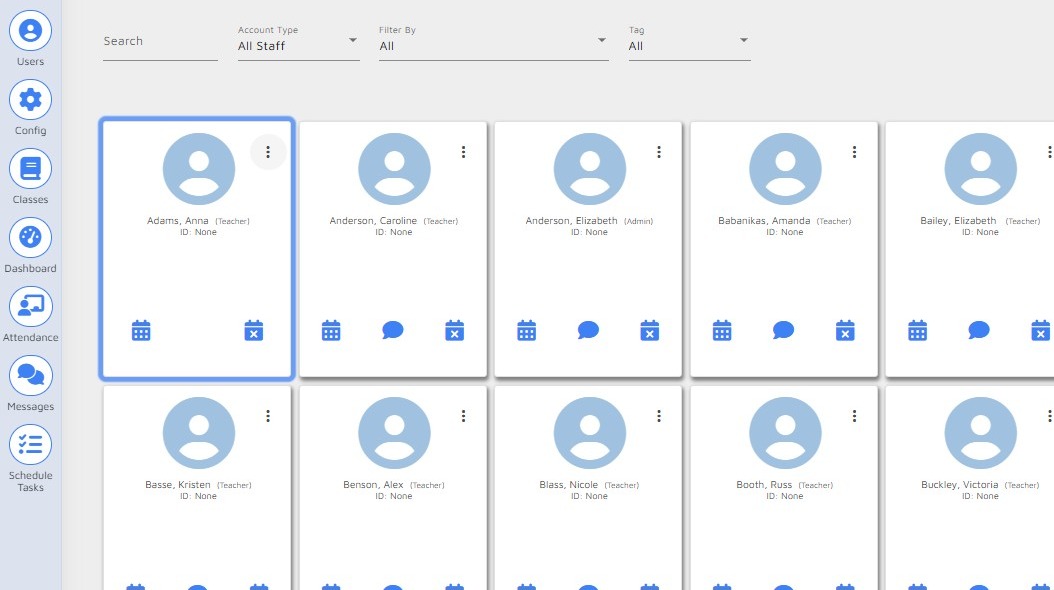
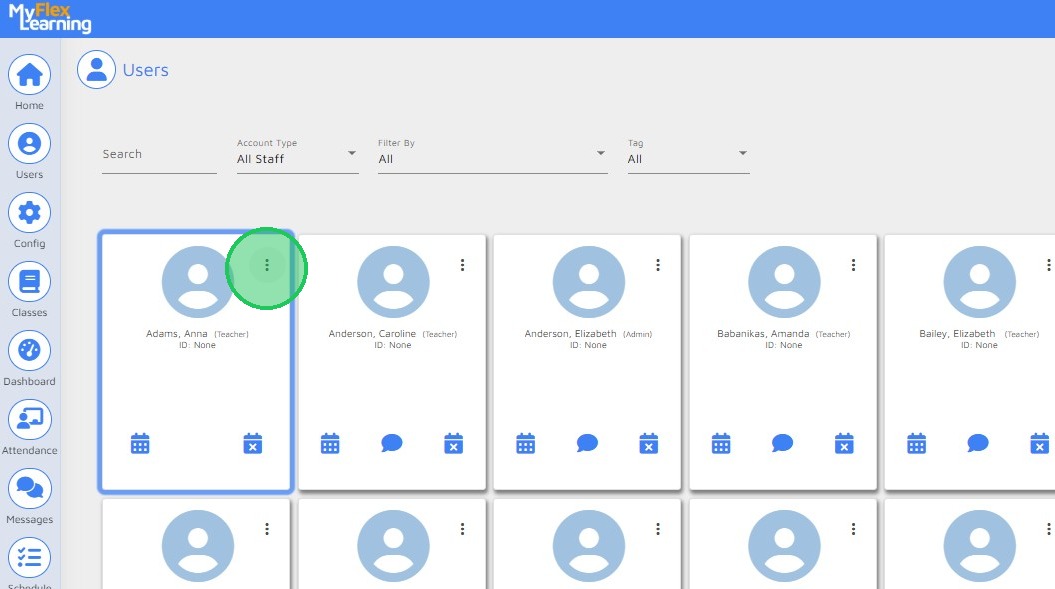
2. Find and select the user you are adding the alternate role to. Click the 3 dots in the upper right corner of the user tile.
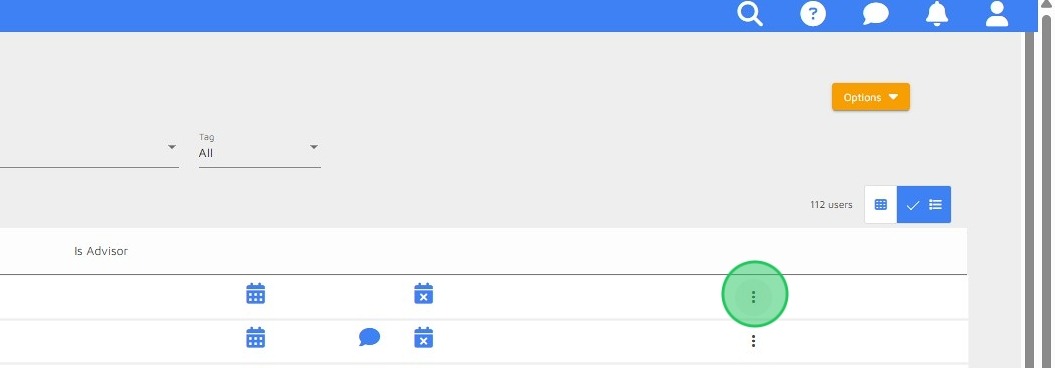
3. Alternatively, if you are working from the user list view select the 3 dots that appear at the far right of the user
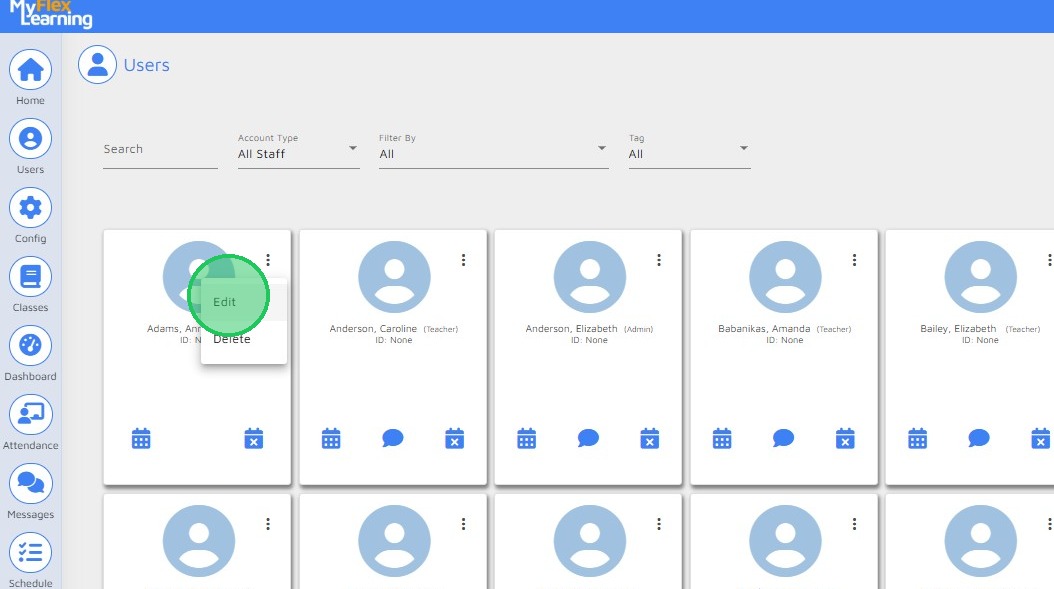
4. Select "Edit" from the dropdown box.
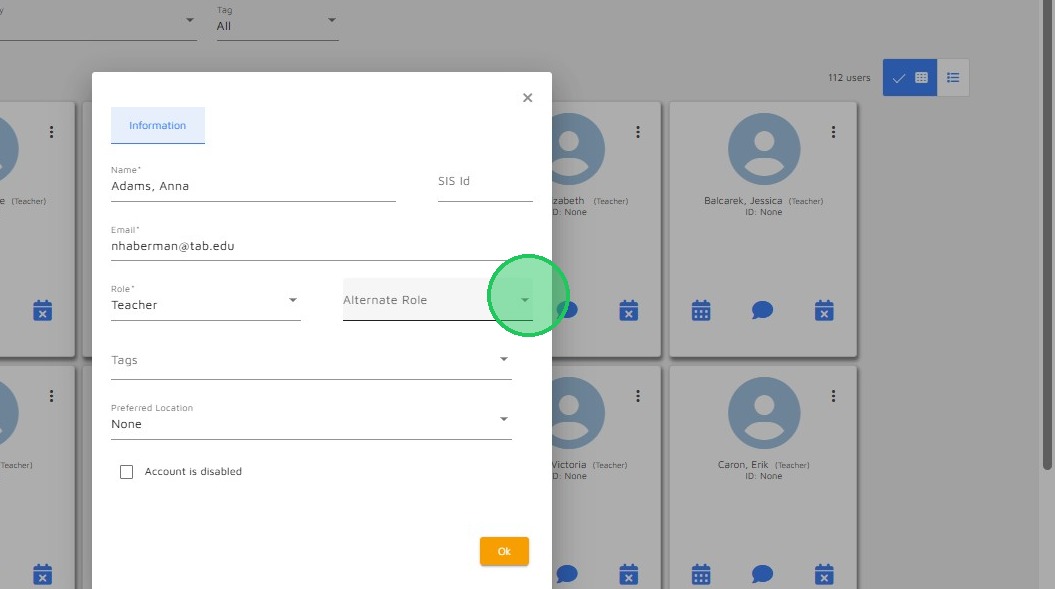
5. Click the arrow in the Alternate Role box.
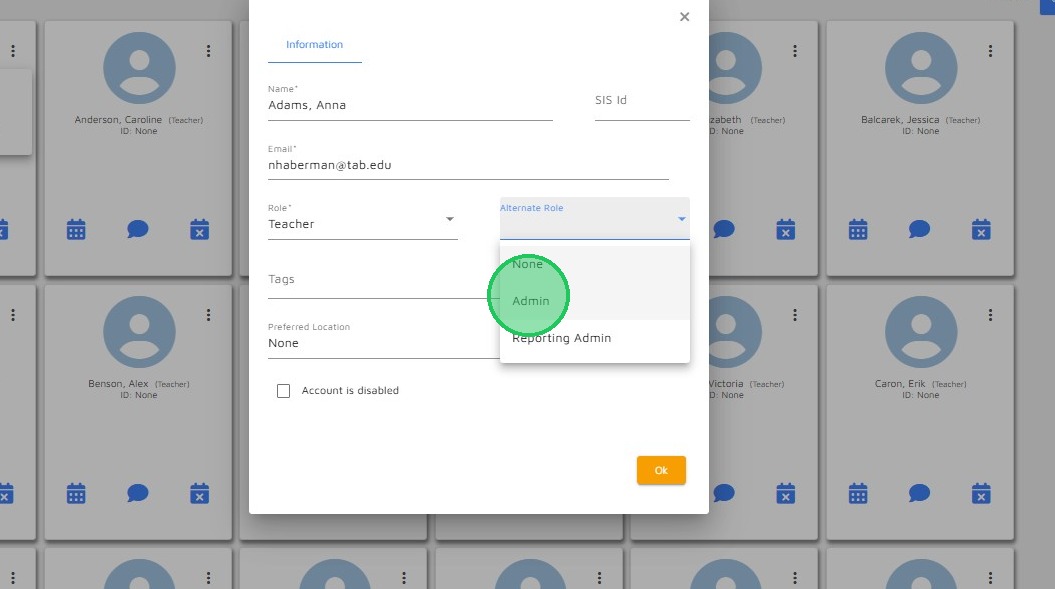
6. From the dropdown box select the role to be assigned as the alternate for this user. In this case the Admin role is being added to the user with the primary role of "Teacher".
7. Click OK to save your work.
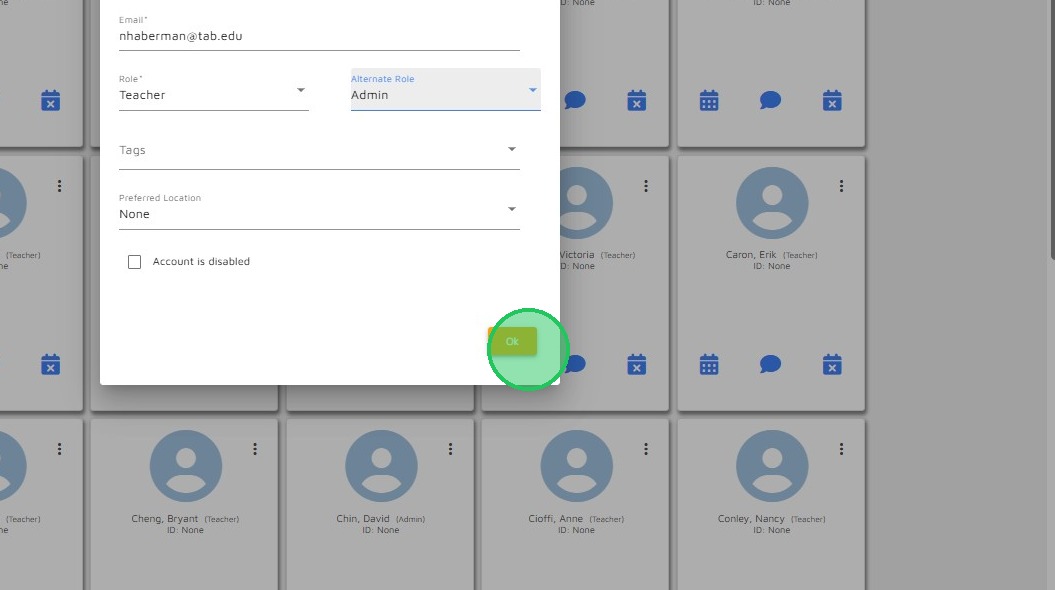
8. The user now has both the primary and alternate roles assigned to them.
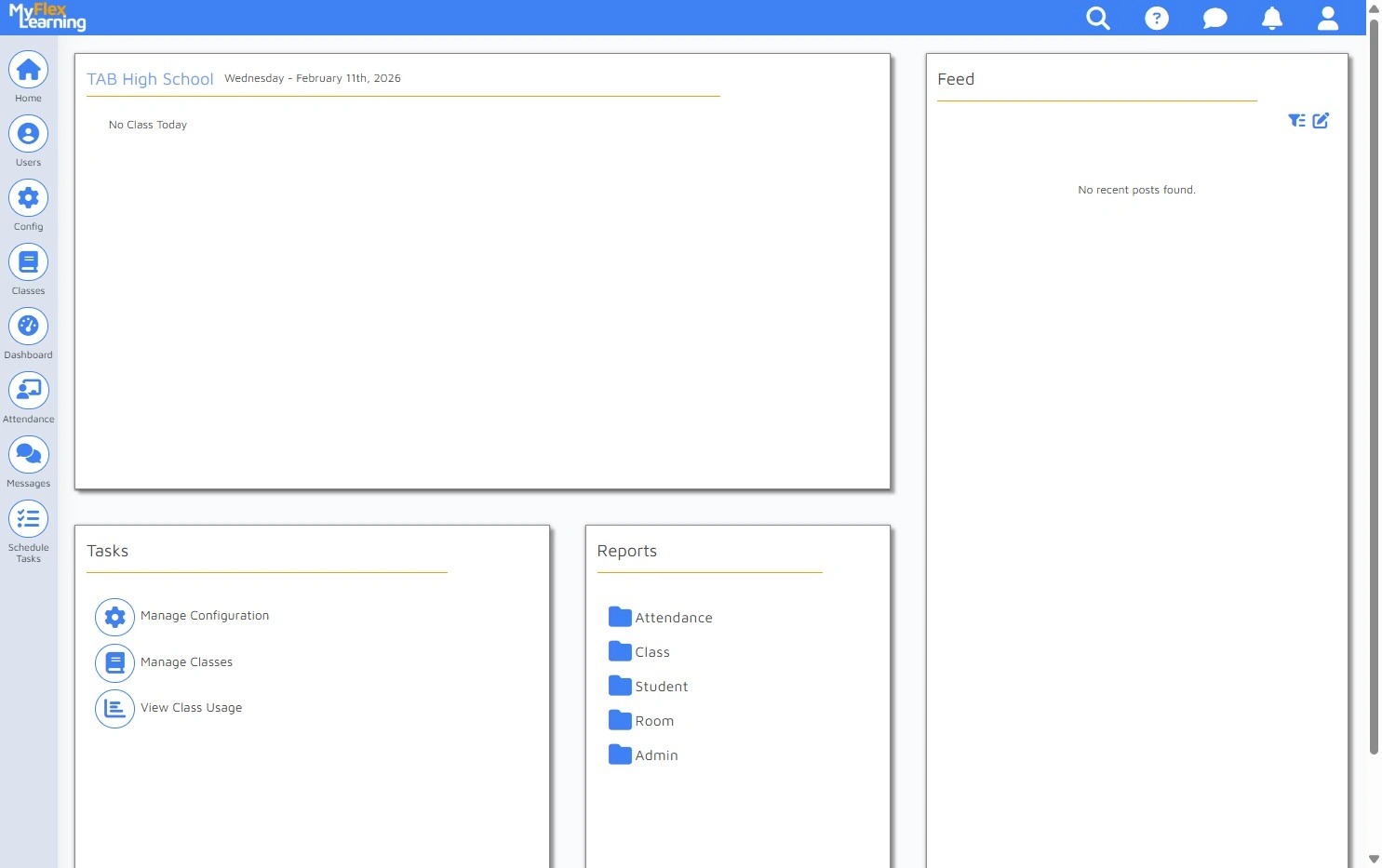
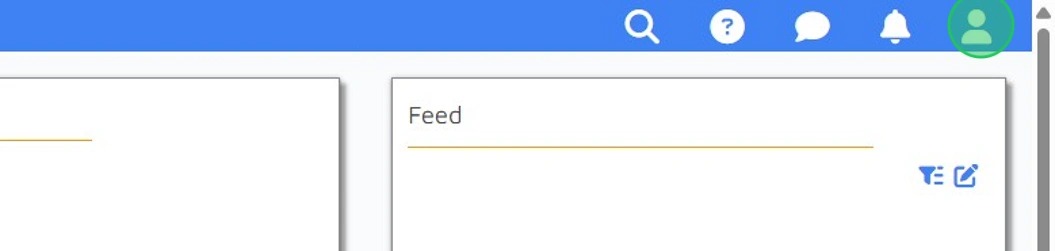
9. When the user needs to change from one role to another, click the profile icon.
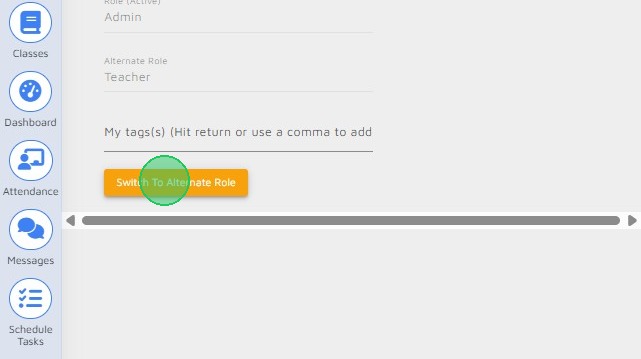
10. Click "Switch To Alternate Role"
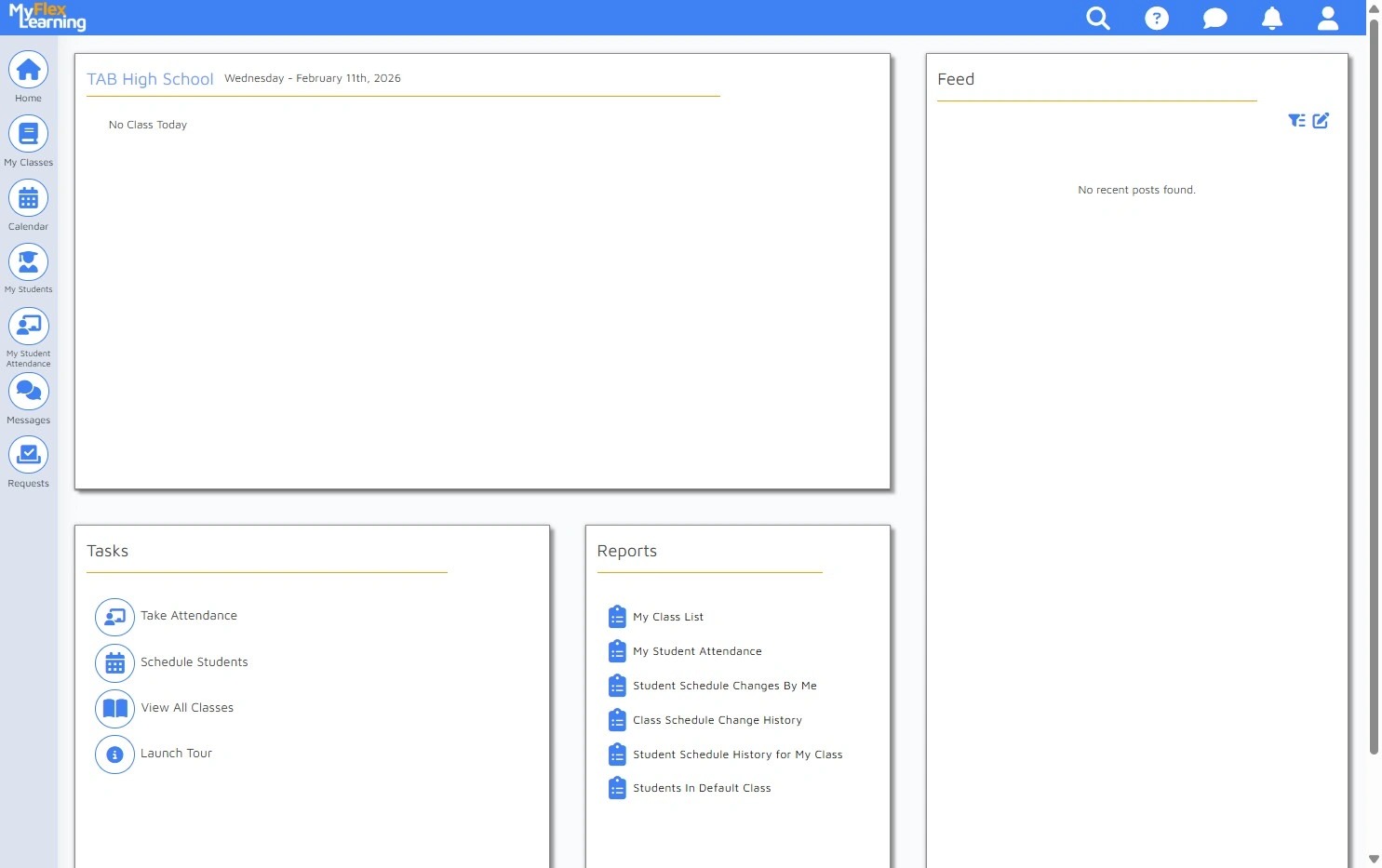
11. The user is now logged in as the alternate role.
Made with Scribe
Comments
0 comments
Please sign in to leave a comment.