
Student Restrictions allow schools to prevent specific students from being scheduled into the same Flex class or roster. When a restriction is set between two or more students, the system automatically enforces the rule during scheduling.
1. Search for the Student - From the Users button, search for a student who belongs to the restricted group.

2. Open the Student Record - Click the vertical ellipses.
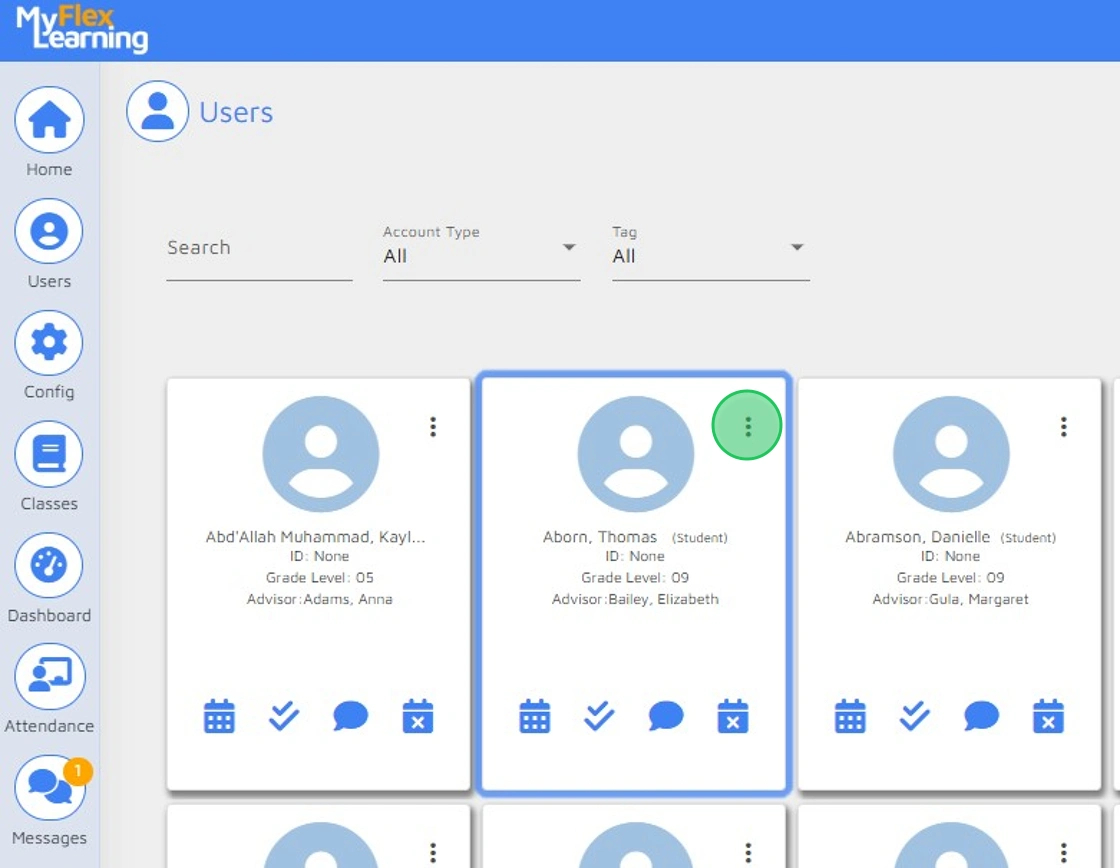
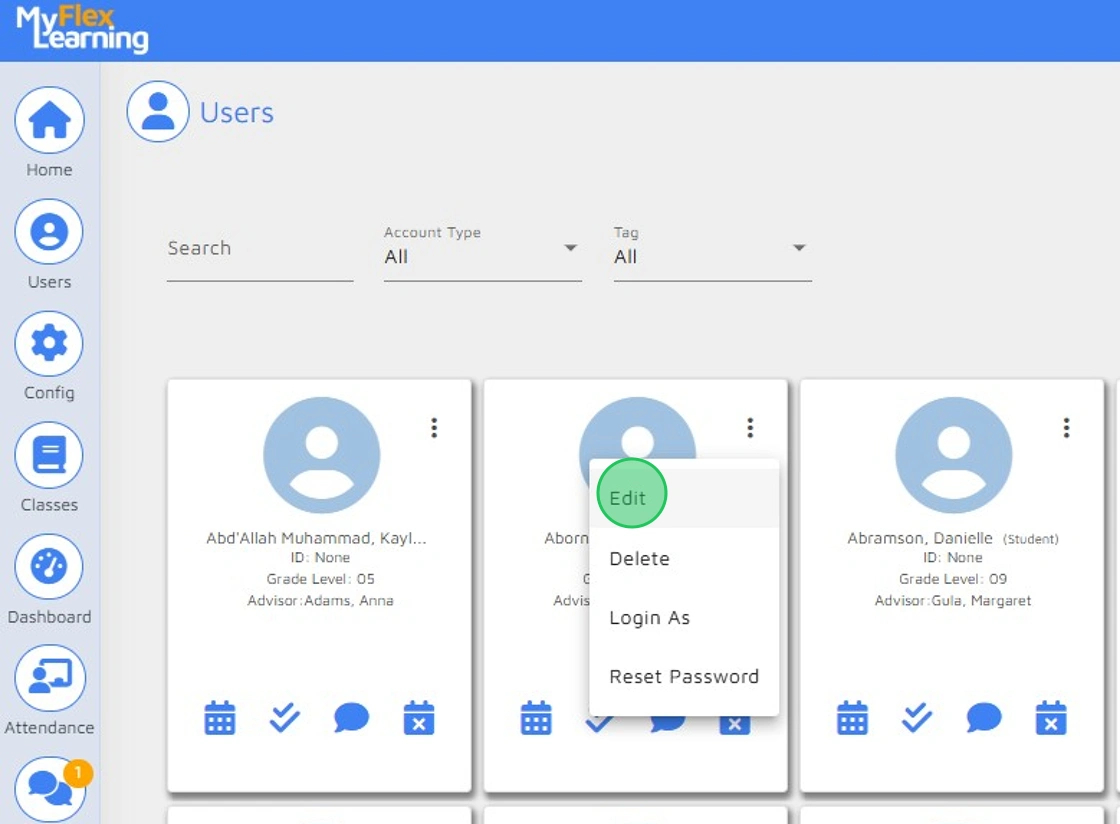
3. Select Edit
4. Click on the Scheduling tab at the top.

5. Click in the Student Restriction field.

6. Type the names of any student(s) this student should not be scheduled on the same roster with.

7. Save Changes - Click OK to apply the updates.

8. Once complete, all students will have an icon visible indicating that there is a student restriction applicable to this student.
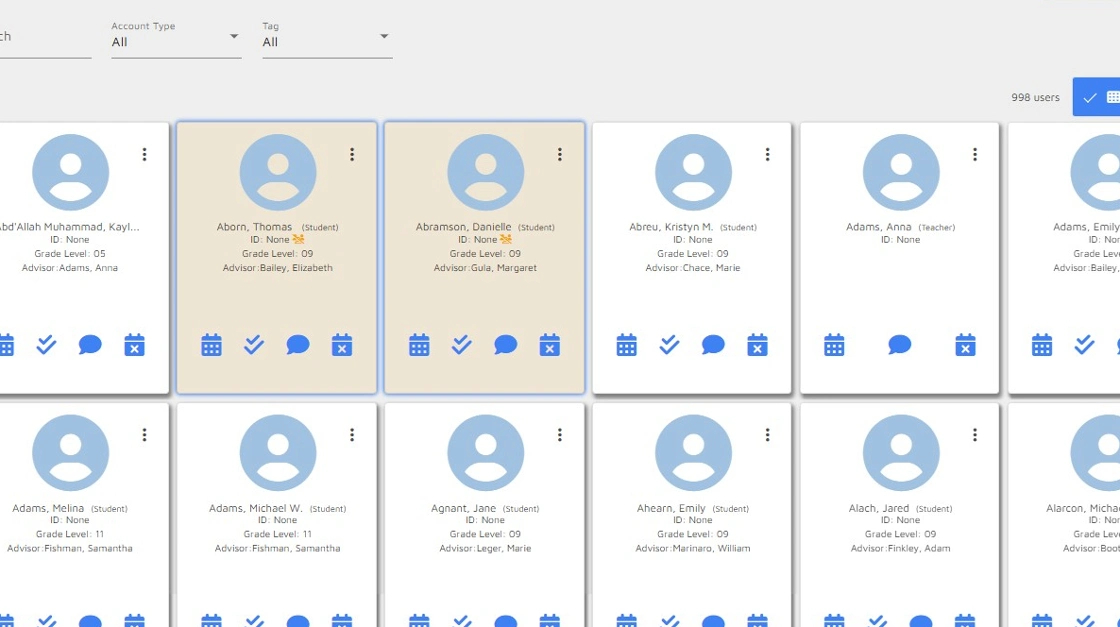
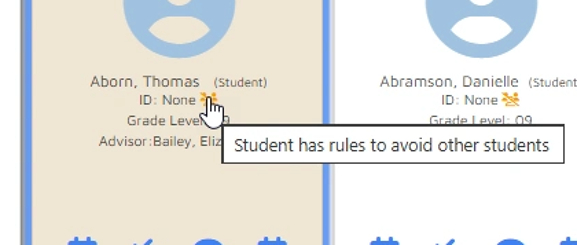
9. When you hover over the icon, the message “Student has rules to avoid other students” appears.
10. To remove the student restriction, navigate back to the student detail, Student Restriction field, click the "x" next to the student name.
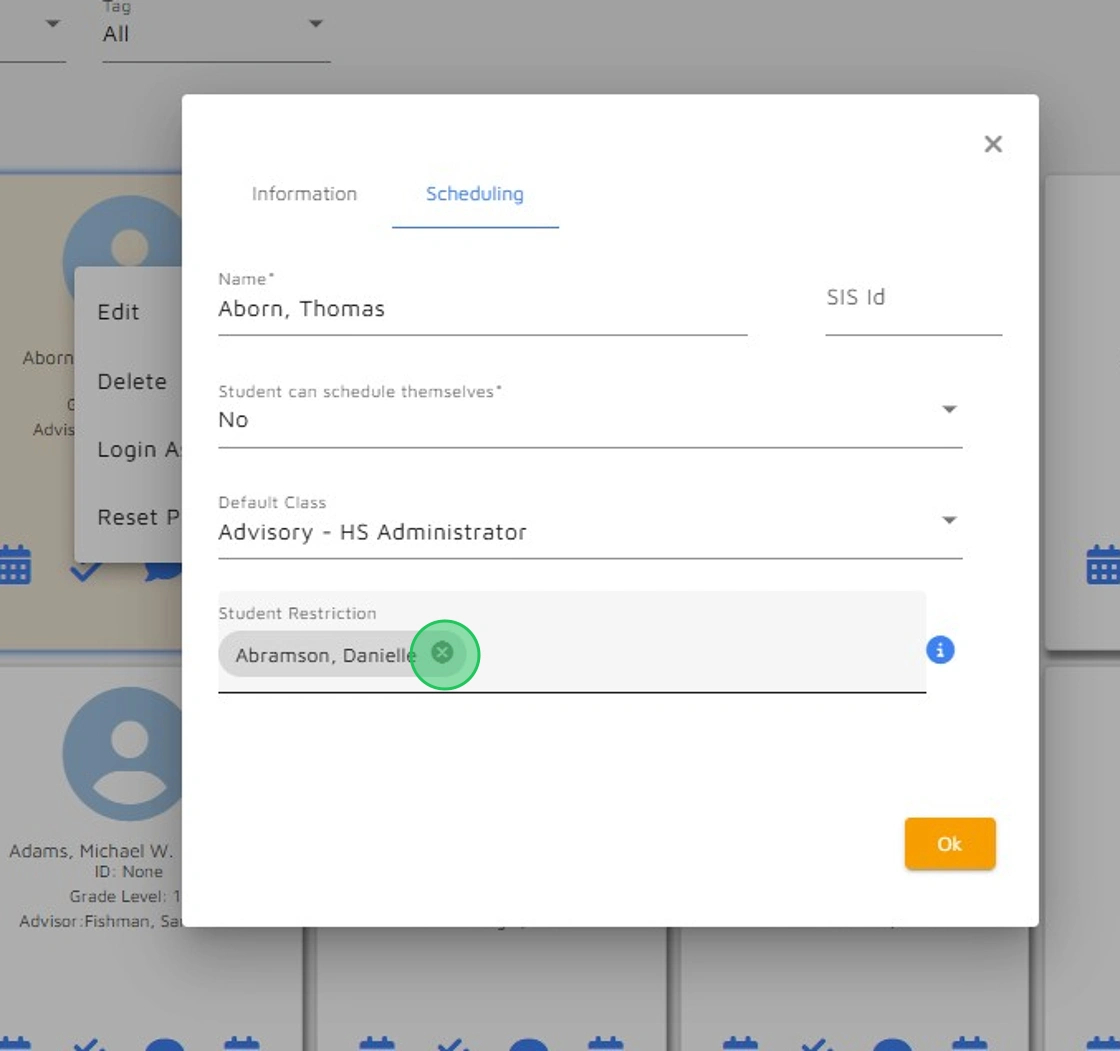
11. Save this setting by clicking the OK
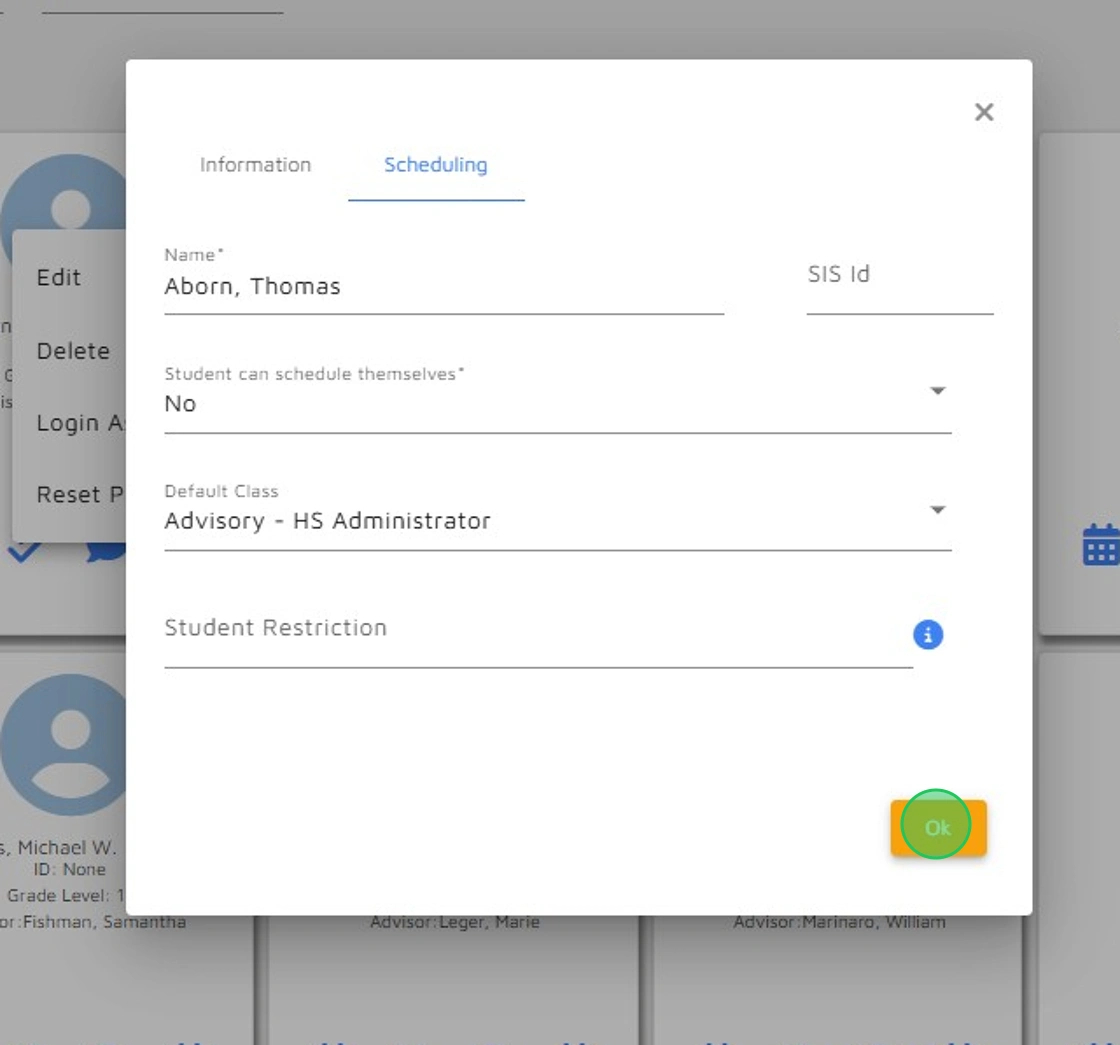
12. NOTE: Student Restriction Icon Behavior
Schools can choose to hide the student restriction icon from teachers:
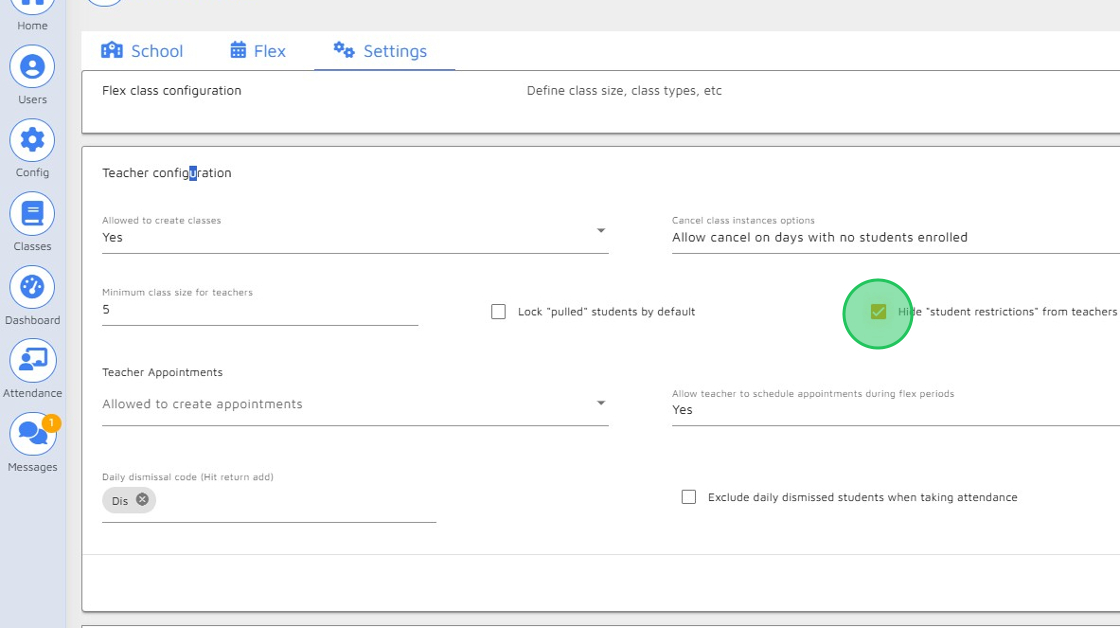
- Go to Config > Settings > Teacher > Hide “student restrictions.” (see steps below)
If the icon is hidden:
Student restriction rules still apply.
Only the icon is invisible to teachers.
If the icon is visible:
Teachers can see the icon and its hover message.
Teachers cannot see the specific students involved in the restriction.
Regardless of icon visibility:
- If a teacher attempts to schedule a student into a class where a restricted student is already on the roster, they will receive a message indicating the student cannot be scheduled.
Overrides:
- In certain situations (for example, grade-level assemblies), student restrictions can be overridden to allow students to be placed on the same roster.
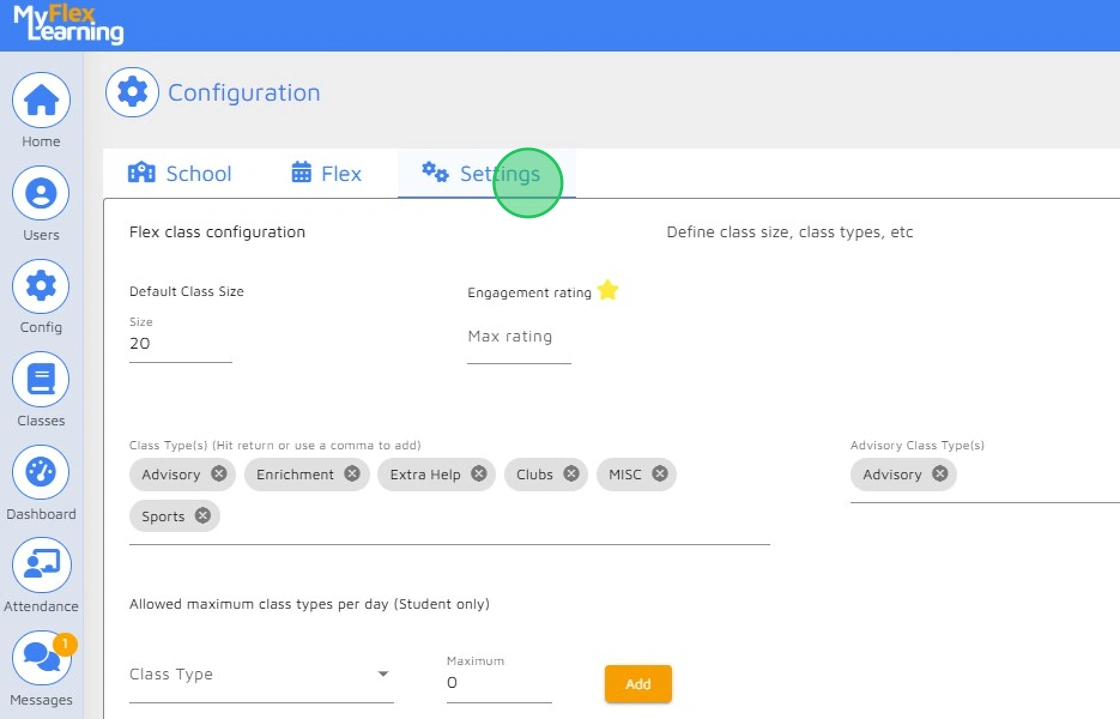
13. Navigate to the Config button.

14. Click Settings
15. Click Teacher configuration
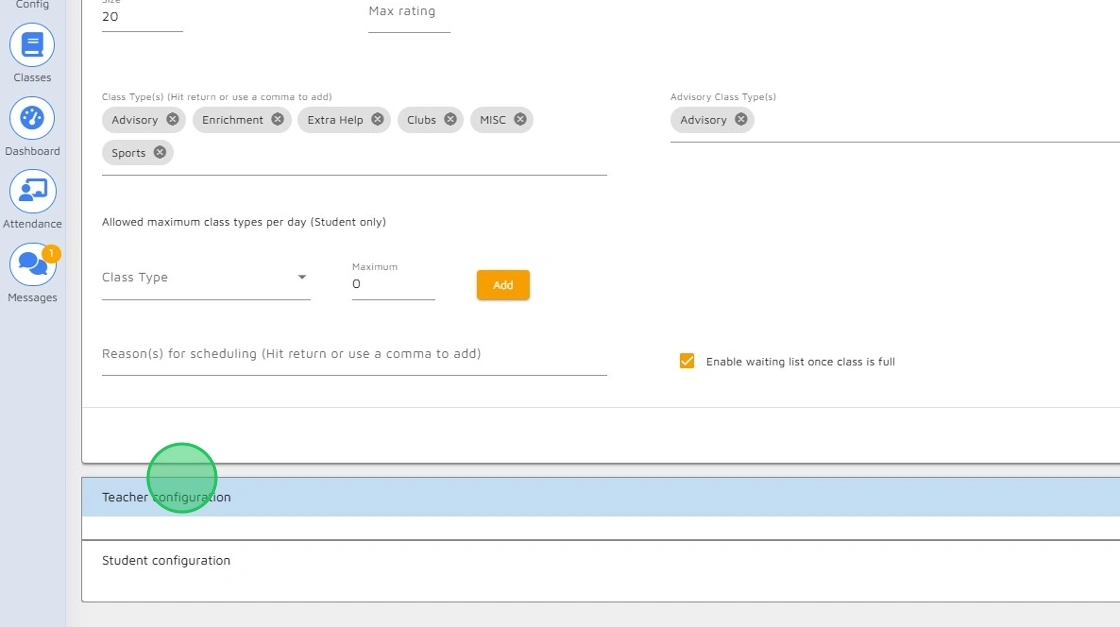
16. Select Hide "student restrictions" from teacher.
Comments
0 comments
Please sign in to leave a comment.