
This article demonstrates how to configure additional reasons for scheduling. Schedule Reasons are a way for teachers and students to quickly note why a schedule change is happening so that other teachers, such as the Advisor or Academic teacher, will understand the schedule change. The Schedule Reason options are configurable by the Admin.
1. Click the Configuration icon on the left panel.
2. Click Class Configuration.
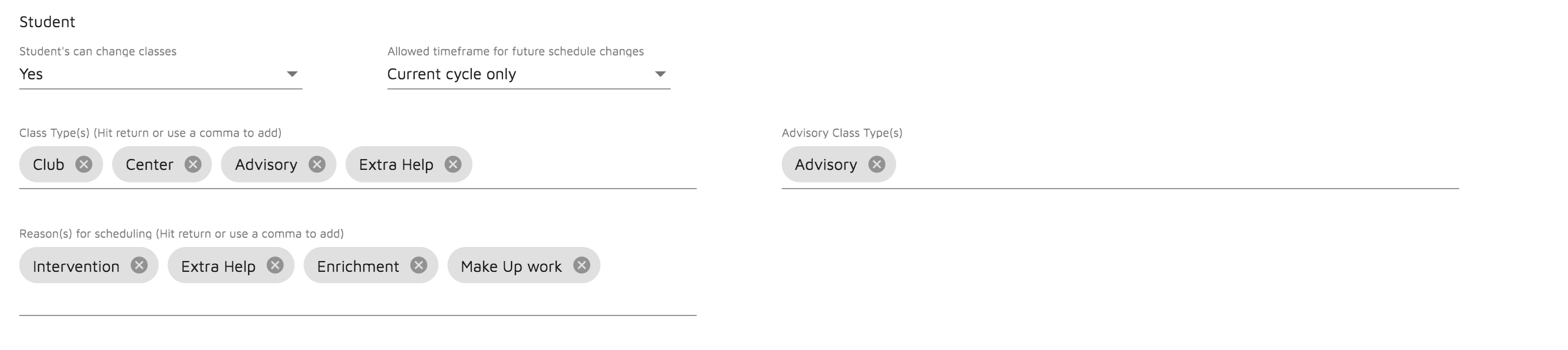
3. Under Reasons for Scheduling, type additional reasons. Hit return or add a comma to add the item to the list. Click the x on a reason to remove it from the list. Note that "Other" will always be a default option for users but is not visible in the configuration list.
Here is a video of this functionality:
Comments
0 comments
Article is closed for comments.