
This article demonstrates how to mass change schedules for a single day for students from the "Users" list. This can be very useful when holding an assembly or managing "unscheduled" students.
1. Click on the Users side link
2. Use the Search, or Filters to find the students you are looking for (you can also "select" students by clicking on their card:
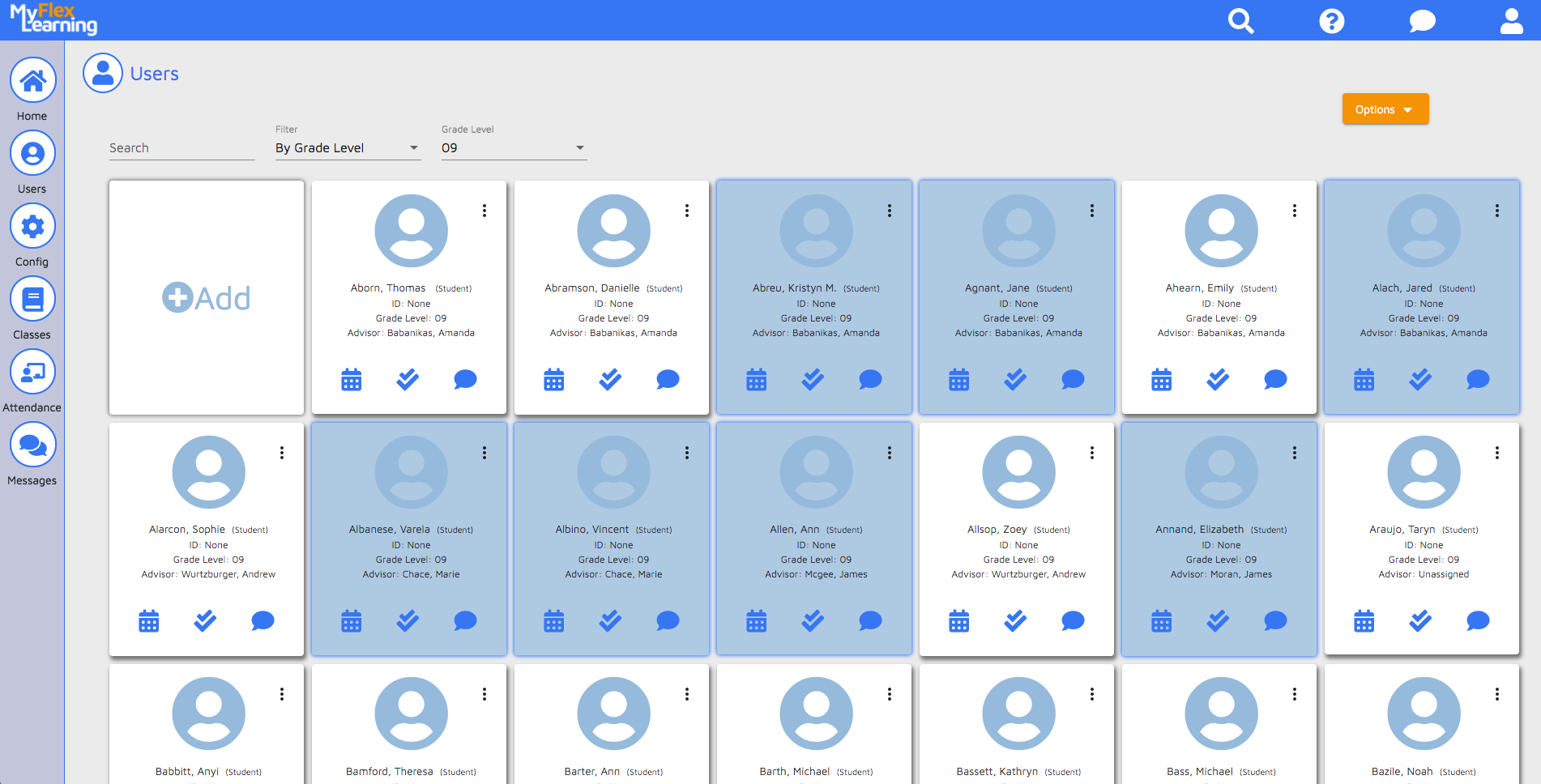
3. Click on the  button and choose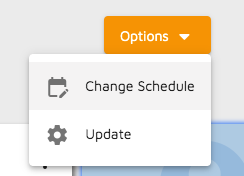
4. Fill in the appropriate information on the "Schedule Students" pop-up:
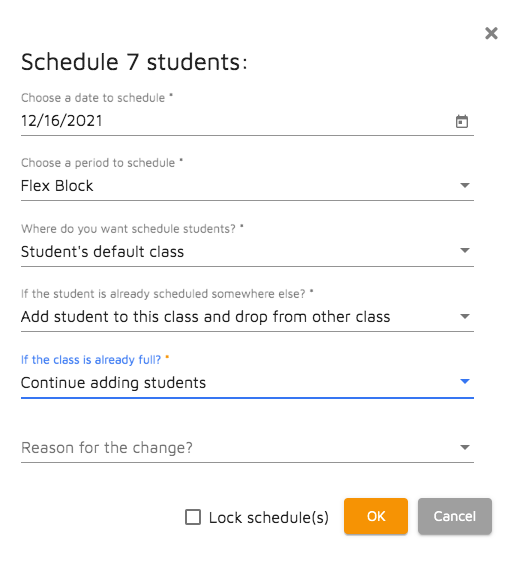
- Choose a date (current date is defaulted)
- Choose a period (defaulted if you only have one period)
- Choose an option for "Where do you want to schedule students?"
- Choose an option for "If the student is already scheduled somewhere else?"
- Choose an option for "If the class is already full?"
- Enter a "Reason for the change?" (Optional)
- Lock Schedule (optional)
Click "Ok"
If you are rescheduling MORE that 5 students, the system will present you with a confirmation window:
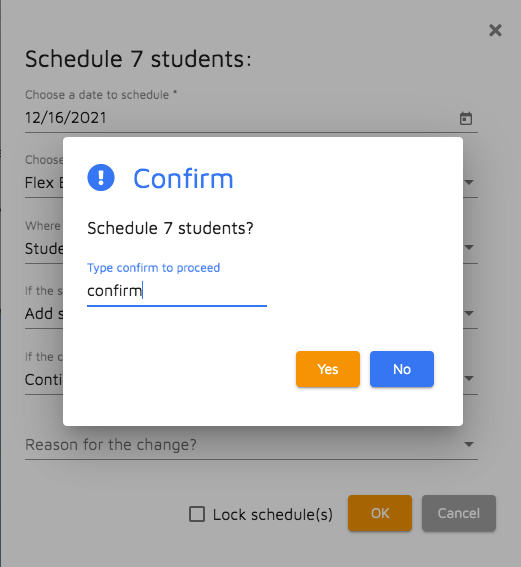
Type "confirm" to proceed.
Here is a video of this functionality:
Comments
1 comment
Is there a way to do this and assign multiple students to a class "until the end of the class"?
I know it's possible to assign a single student to a class until the end of the class, but I haven't figured out how to do it for multiple students yet.
Article is closed for comments.