
Allows admins to lock students/teachers from self-scheduling in bulk for a scheduled day.
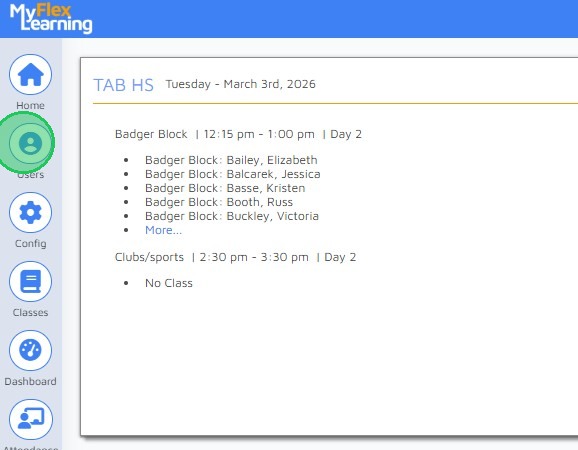
1. Logged in as an admin > click Users.
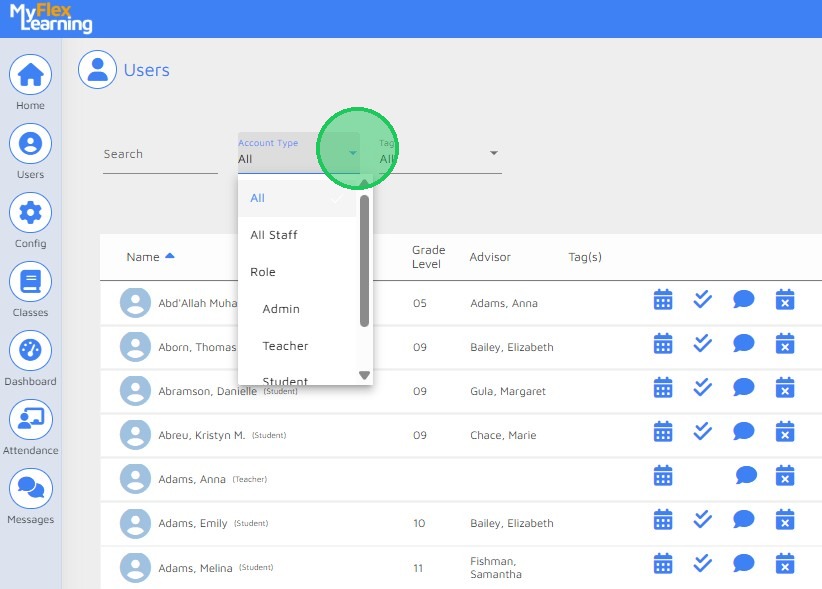
2. Click on Account Type dropdown arrow.
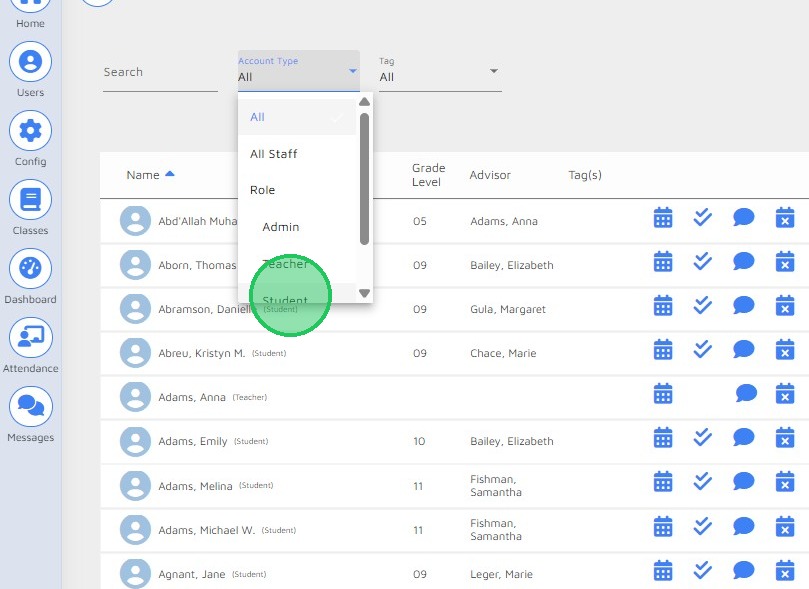
3. Select Student from the dropdown.
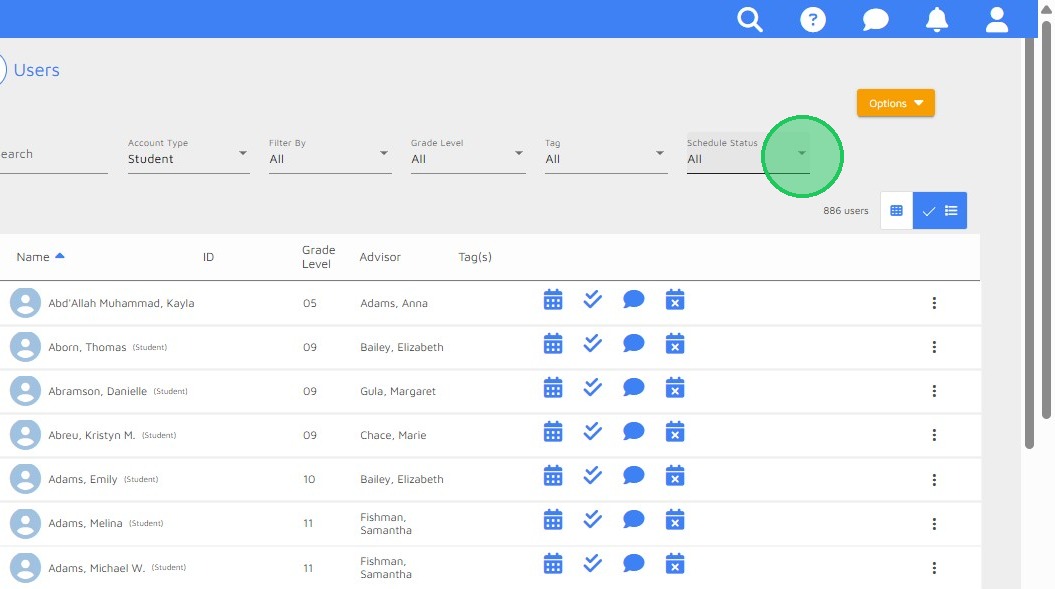
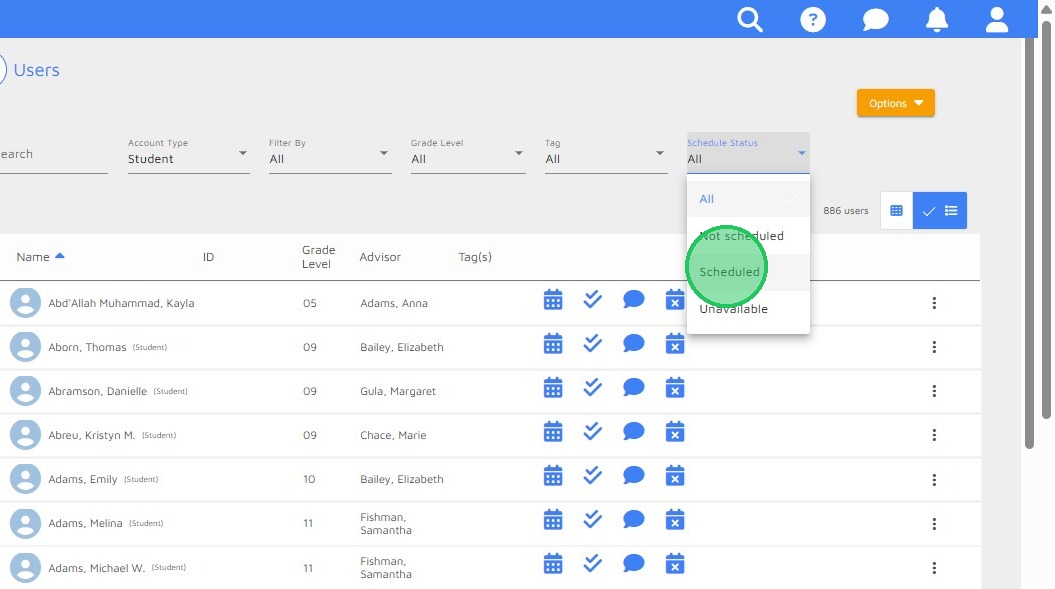
4. Click the Schedule Status dropdown arrow.
5. Select Scheduled from the dropdown.
6. From the Date field, click the Calendar icon.
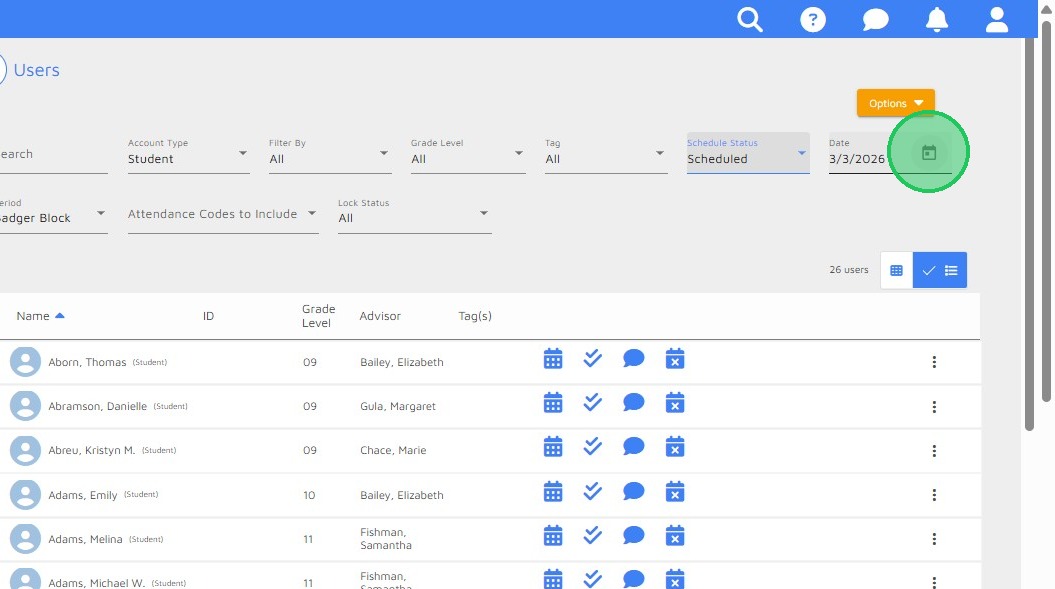
7. Use the calendar pop-up to select the date you want to apply the student schedule lock to.

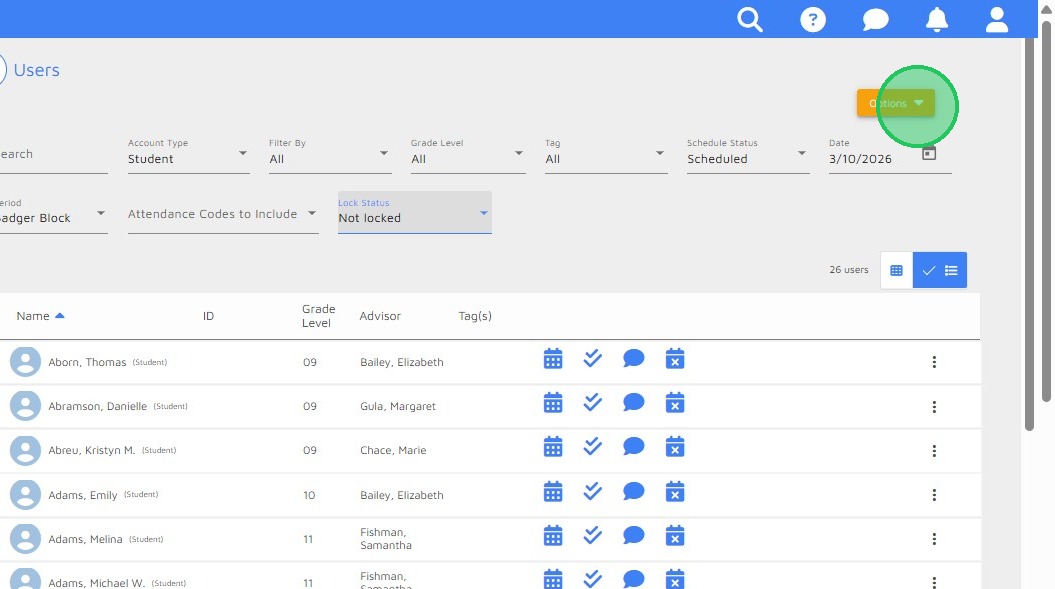
8. Click Options for the dropdown menu of selections.
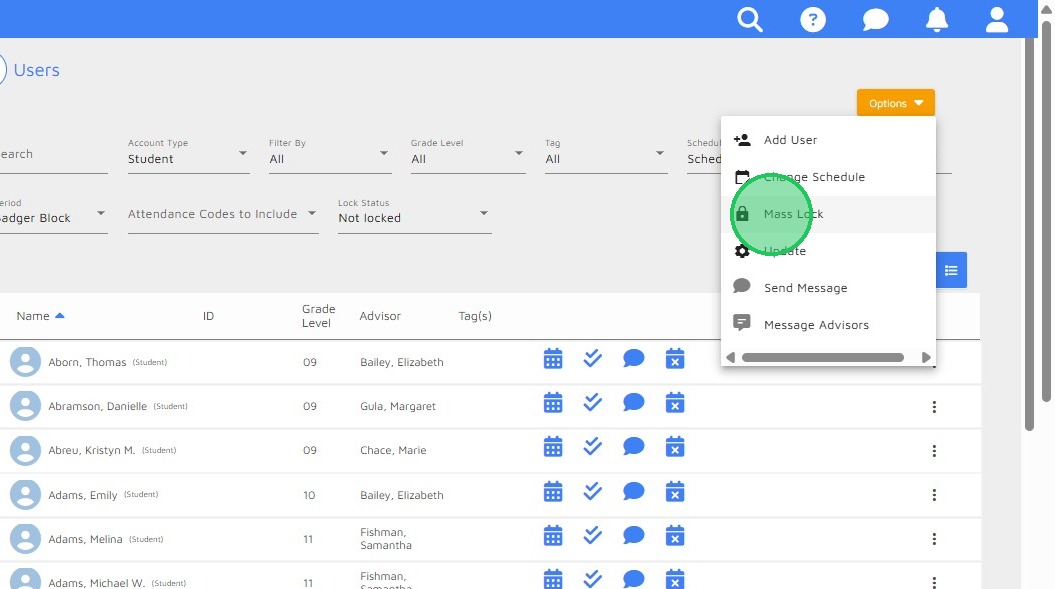
9. Select Mass Lock from the dropdown menu
10. Click the dropdown arrow for the selection menu.
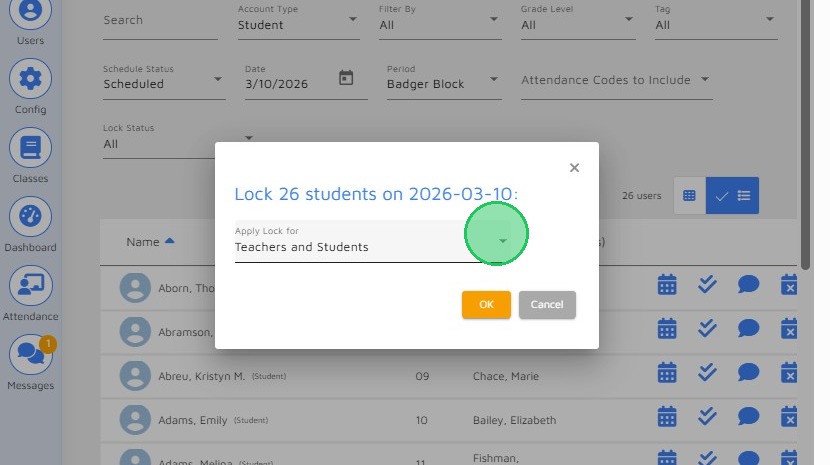
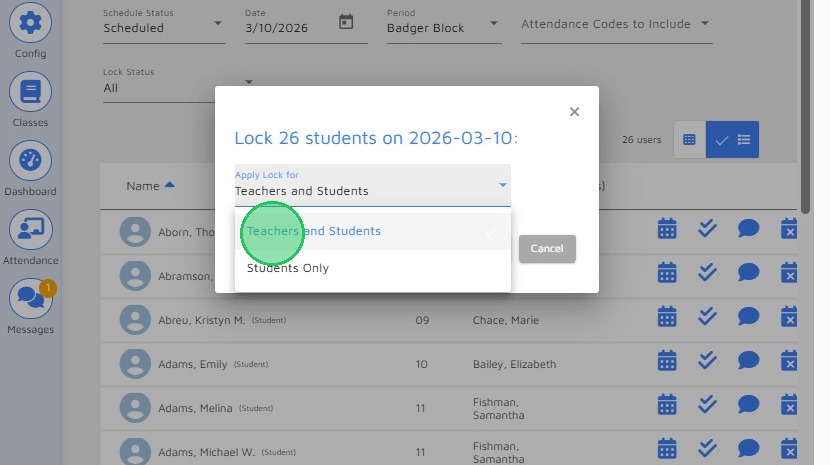
11. Select Teachers and Students or Students Only from the list. When Teachers and Students is selected, both teachers and students will be locked from changing schedules.
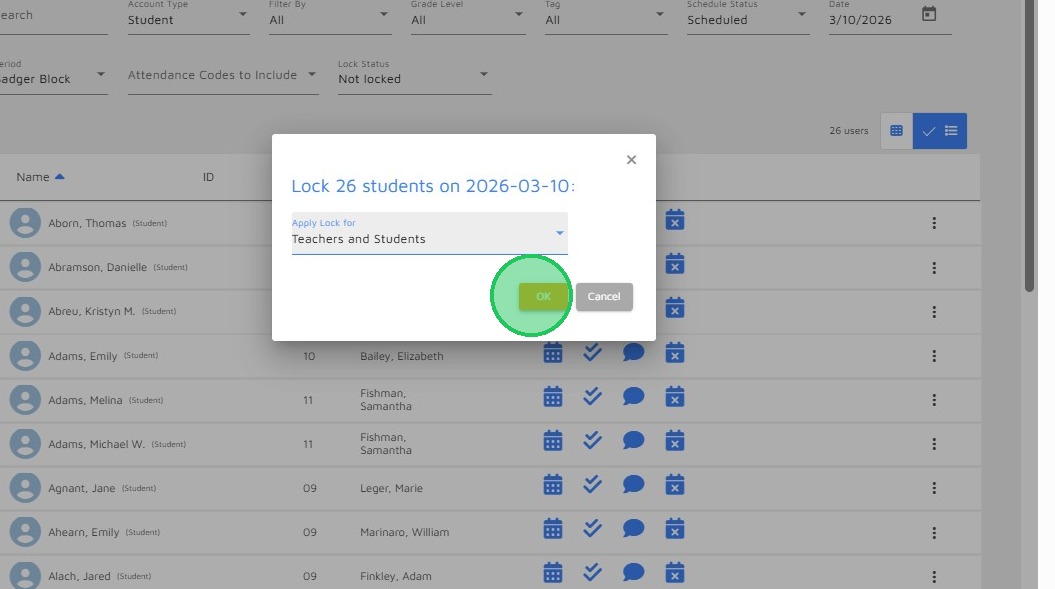
12. Click the OK button.
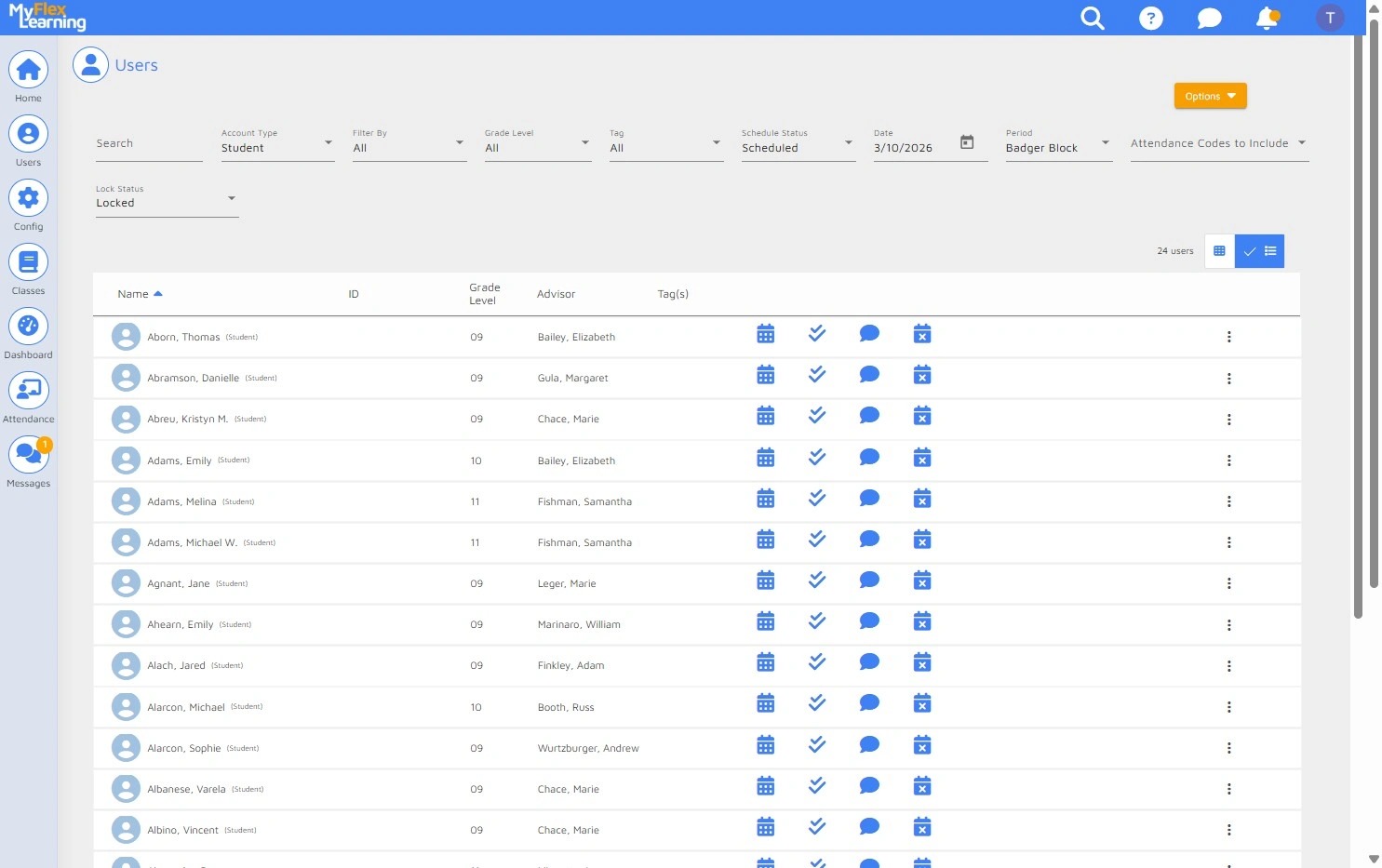
13. To verify if all students are locked, filter by Students > Schedule Status > Date > Locked Status.
Comments
0 comments
Please sign in to leave a comment.