
This article demonstrates how to view your flex block in session dates in MyFlexLearning.
1. Click the Configuration icon on the left panel.
2. Click In Session Dates. Dates with a blue circle are in session.
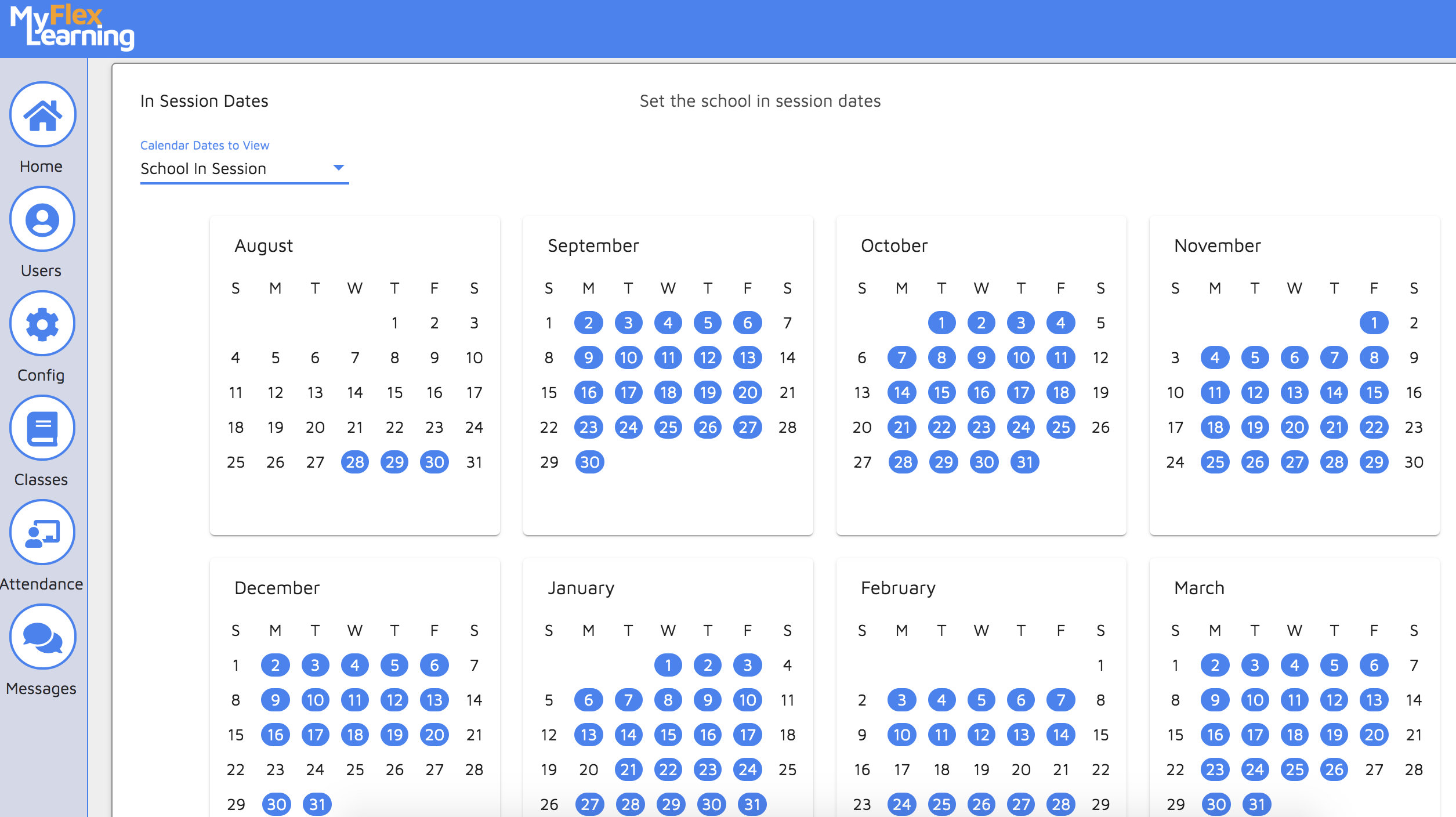
3. Click "School In Session" under the Calendar Dates to View drop-down menu.
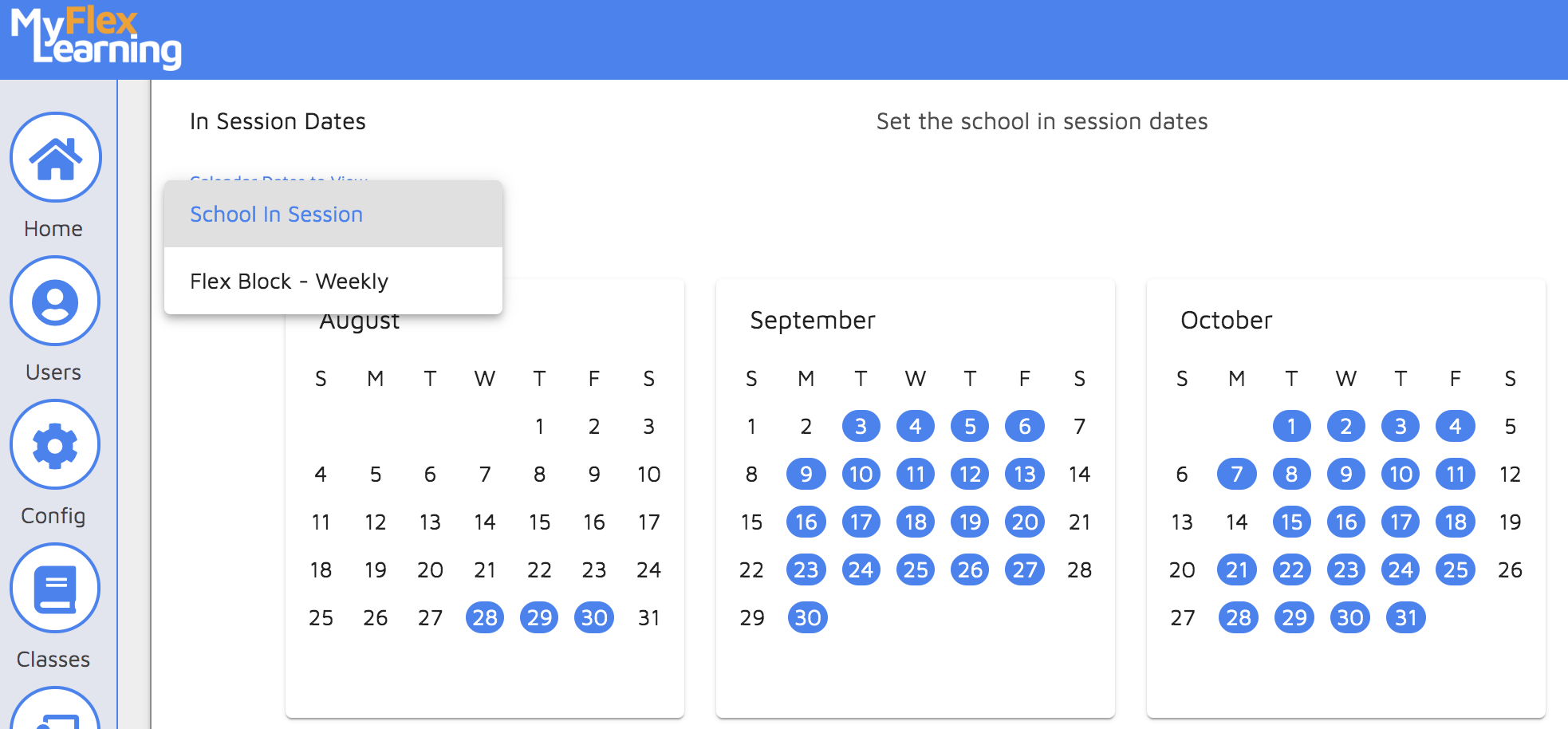
5. Select the flex block to view the meeting dates for the flex block. Note the dates in orange represent the planning dates, if that is used by your school.
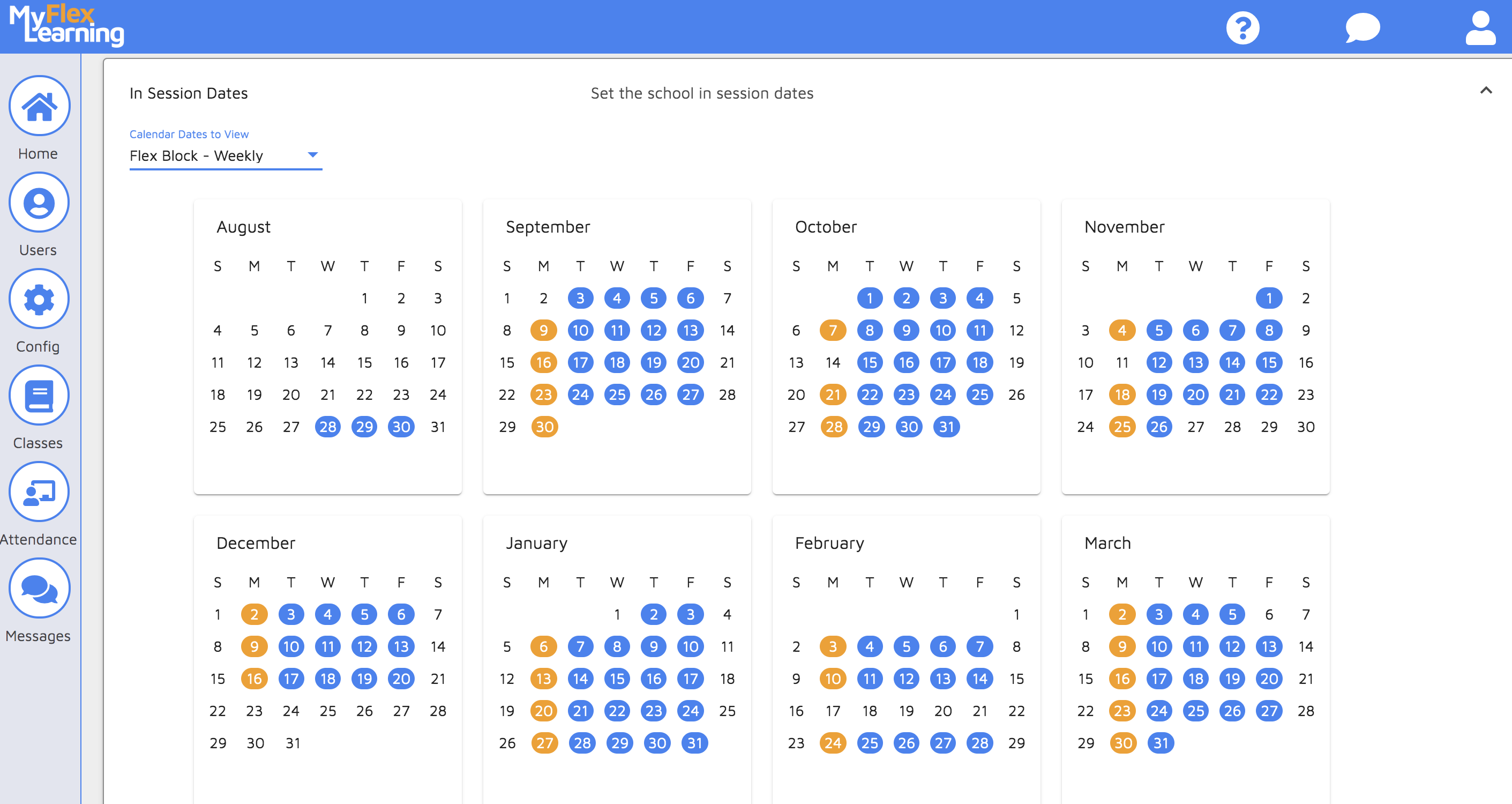
4. To change a date from meeting to not meeting , click on the date so there is no longer a blue circle around it. Note that if the "School in Session" date is turned off, the In Session date for the Flex Block will also be turned off.
Here is a video of this functionality:
Comments
0 comments
Article is closed for comments.