
This article demonstrates how to create and set tags on Students MyFlexLearning. Tags can be used to quickly identify students, such as for counselors, cohorts or activities.
Teachers or Administrators can set Tags on Students, but only Administrators can configure the Tags. Students can not view tags.
1. When logged in as an Administrator, click the Config icon on the left panel.
2. Open Additional Configuration and scroll down to Tags.
3. Add all Tags, clicking return or comma between each tag.

4. Click on the Users icon on the left panel. Filter for Students.
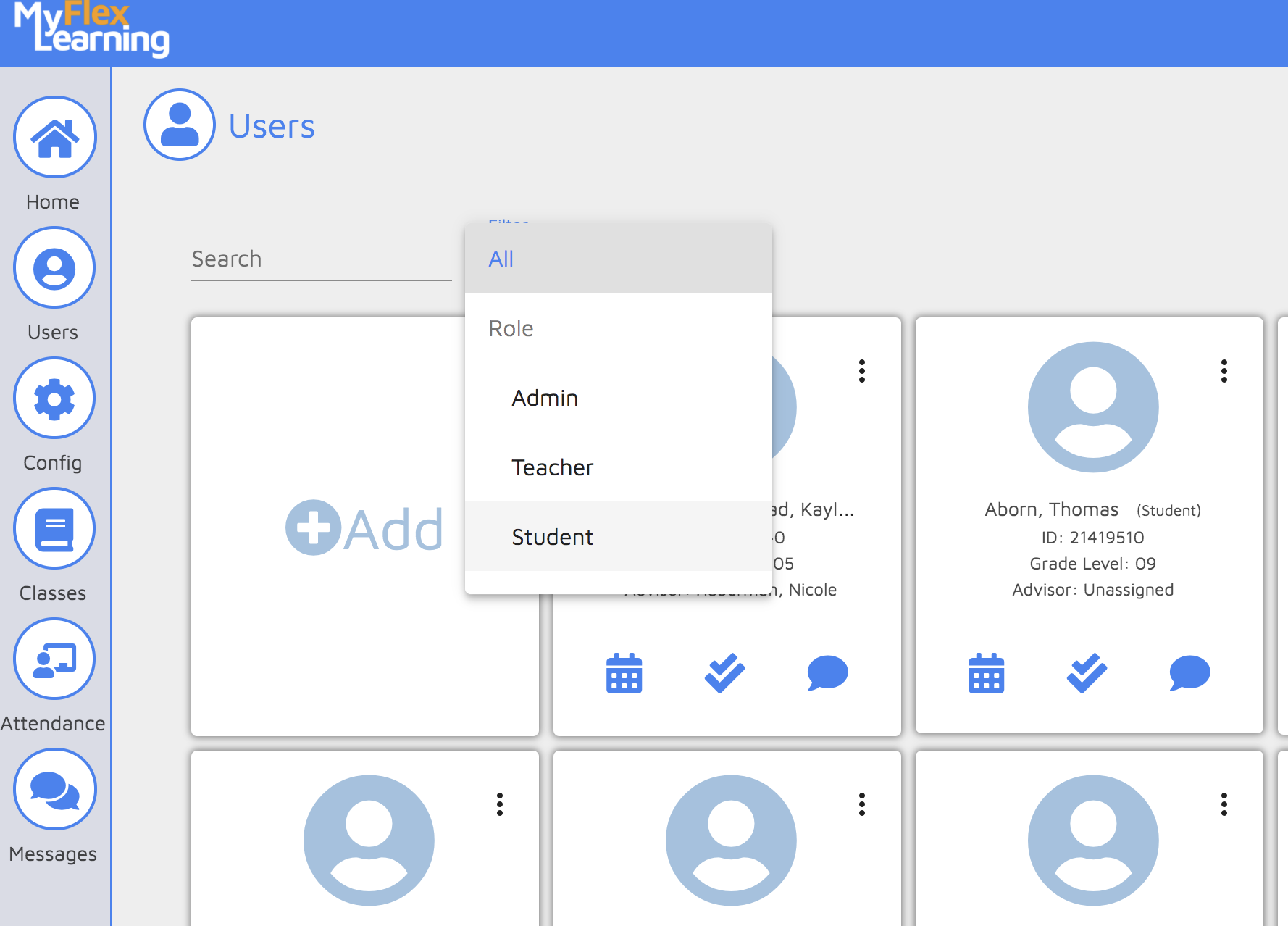
5. To add a tag for a single student:
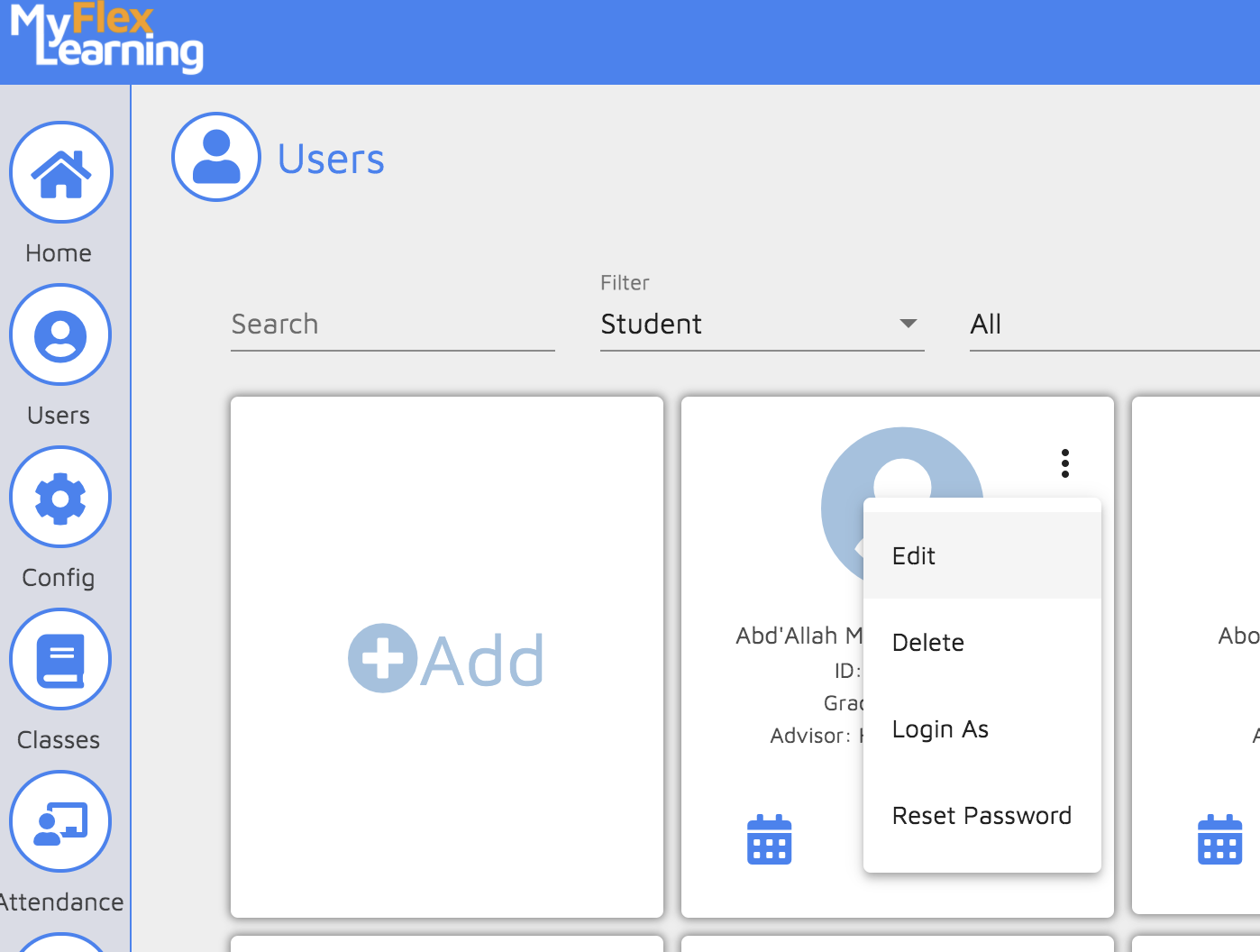
Click the three dots on the student's card and click Edit.
Click the Tag dropdown and select the Tag for this student.
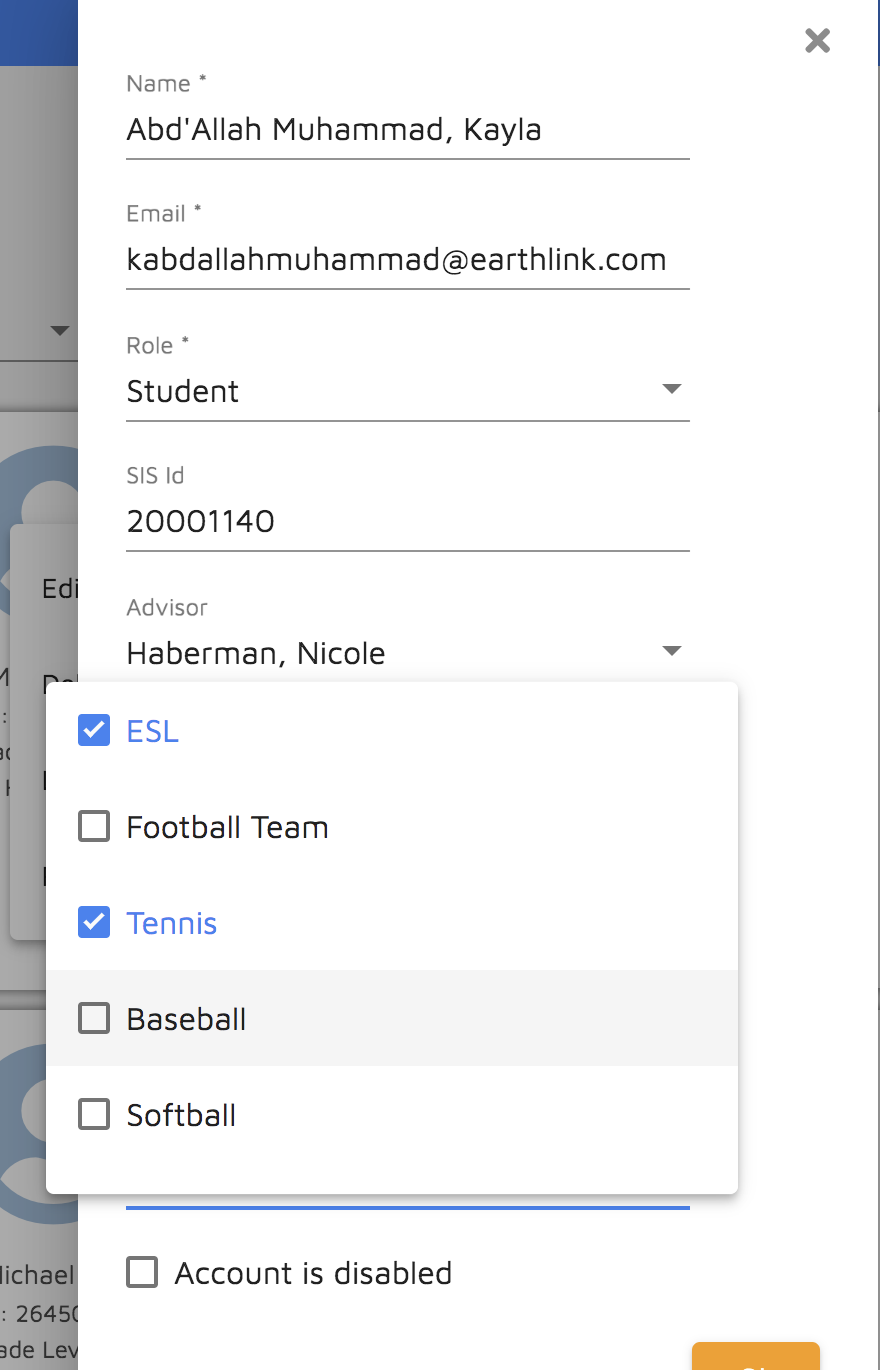
Click Ok.
To add a tag for multiple students:
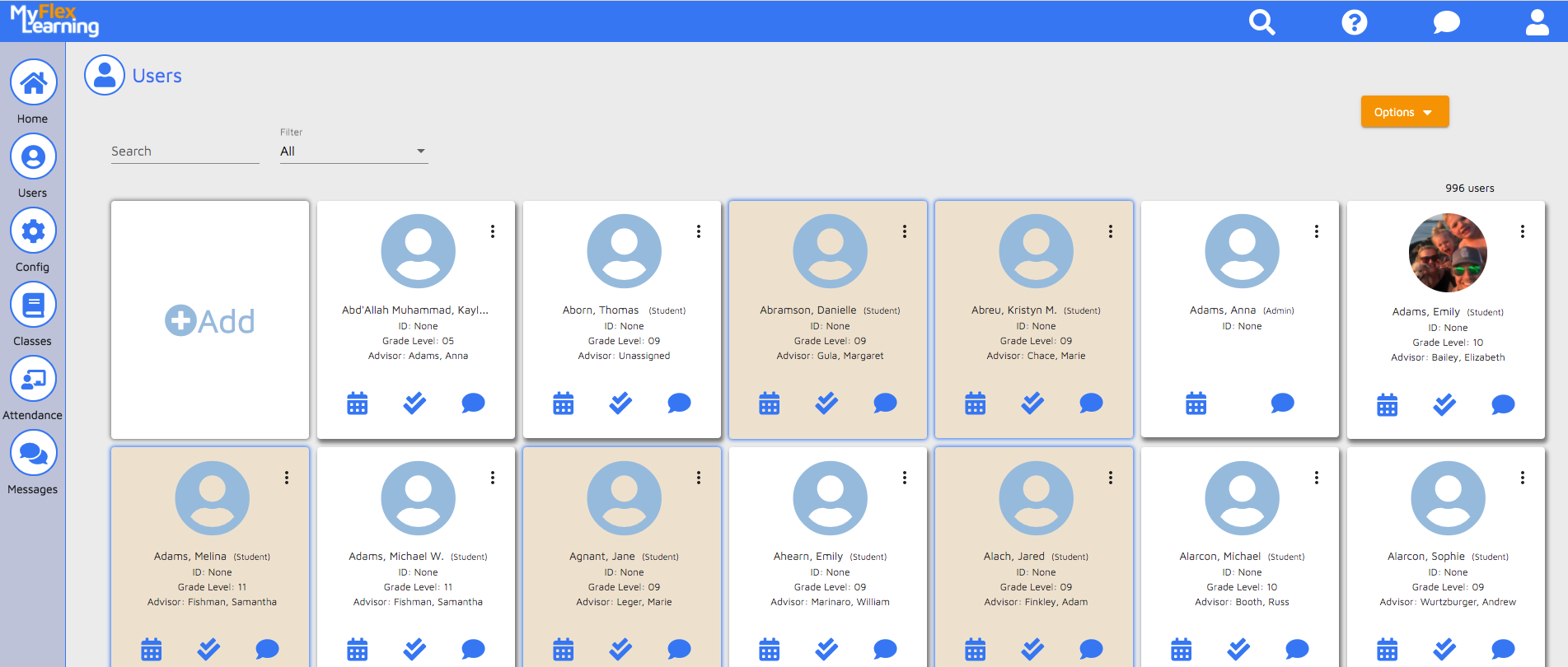
Click the cards for students. The search bar can be useful to search by name or ID.
Click the Options button on the upper right and choose 
On the Select Field to Update dropdown, select Tag.
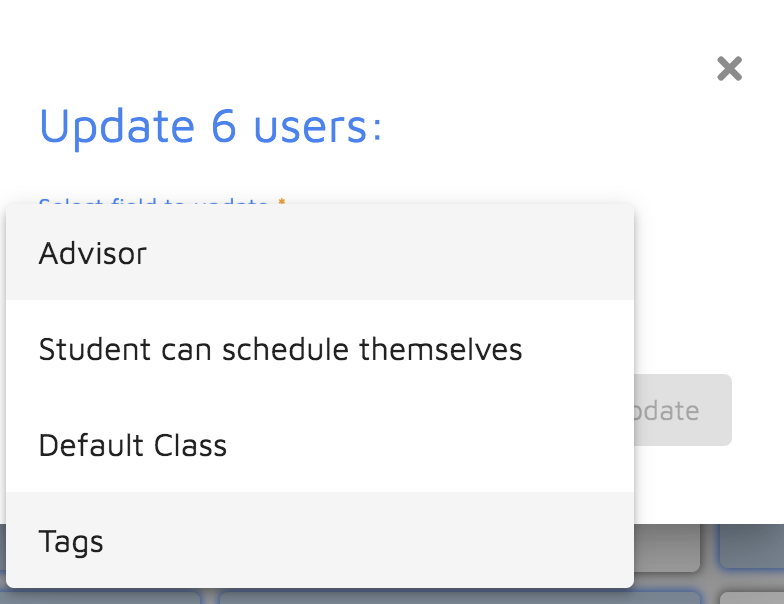
Select the Tag to assign to the students.
The checkbox "Do not overwrite existing tags" is checked by default. When checked, any existing tags will remain on the student record. When unchecked, the update will remove existing tags and replace with the new tag.
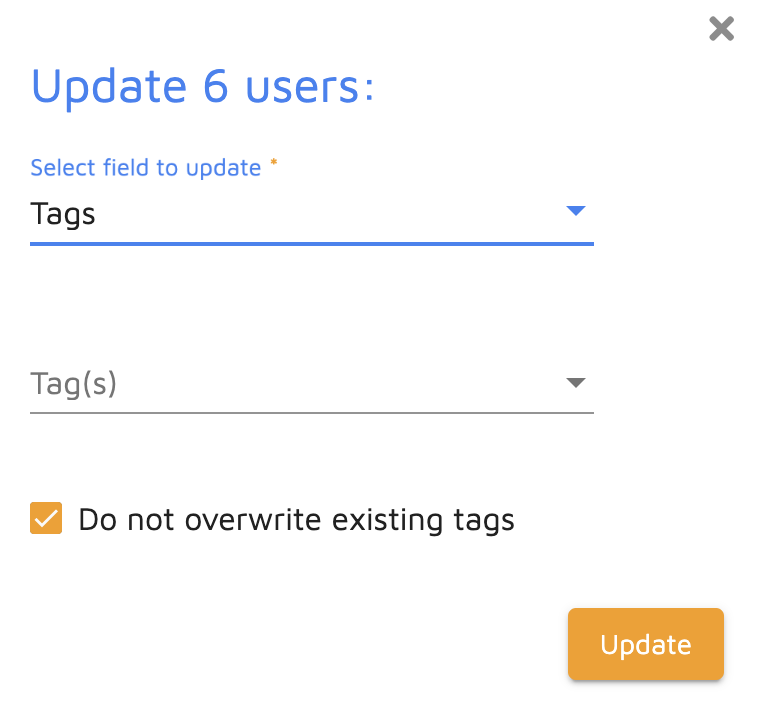
Click Update.
6. To confirm, click the Filter dropdown and select By Tag.
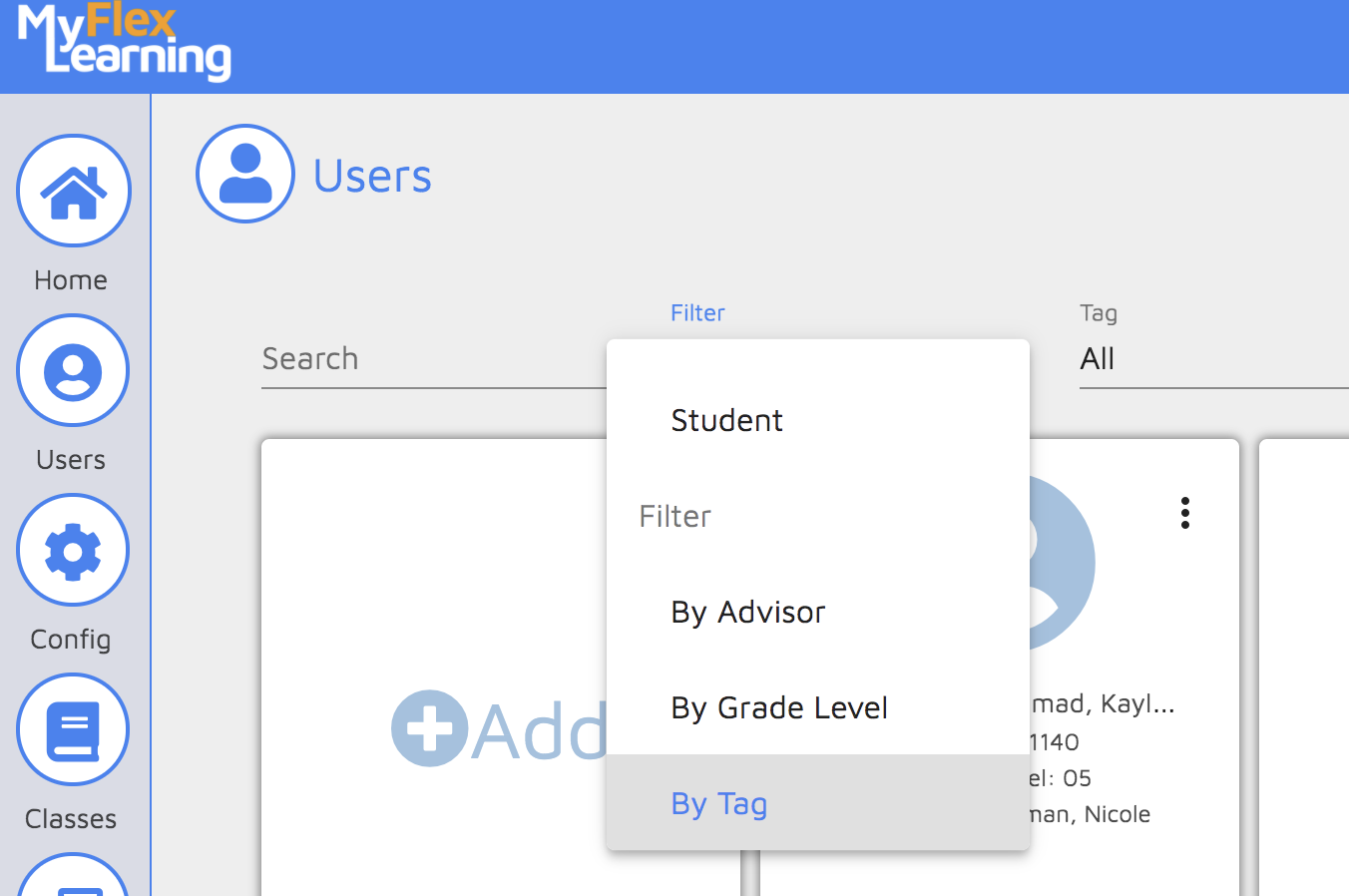
7. In the Tag dropdown, select the Tag. You will see the students who have the Tag you selected.
Comments
0 comments
Article is closed for comments.